The Ultimate NAS Guide
A NAS is your personal cloud: central storage, backups, media, and apps: all in one always-on box, tailored to your needs and under your control.

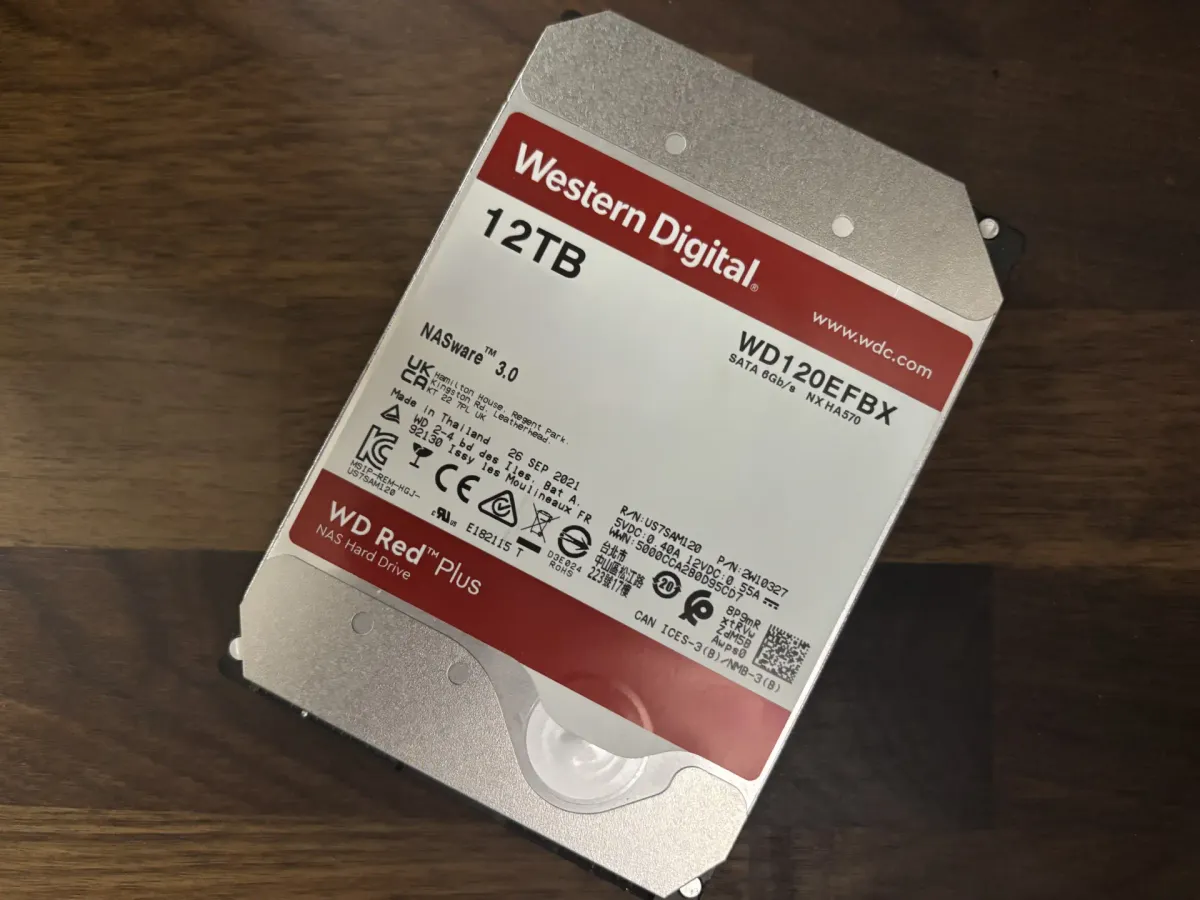
As its core, a NAS provides centralized file storage that is always available on your local network. It gives users a consistent and secure place to store, share, and manage files across multiple devices. For homelab enthusiasts and small offices alike, it becomes a practical tool for organizing data, automating backups, and hosting services.
Part 1 : What can you do with a NAS?
The real value of a NAS comes from its flexibility. Whether you're building a media library, protecting important documents, or running self-hosted applications, a NAS can adapt to the role you need. In this section, we look at the most common and effective uses for a NAS in home and small-scale environments.
Centralized File Storage and Sharing
A NAS provides centralized storage that is always available on your local network. It offers a consistent and secure place to store, share, and manage files across all your devices. Centralizing data solves a familiar problem: scattered files. Instead of keeping copies on different laptops, external drives, or cloud accounts, everything lives in one place. This makes organizing your files easier, simplifies backup routines, and prevents the confusion of conflicting versions or missing documents. Most NAS platforms support two main sharing protocols: SMB and NFS.
 Stan Kats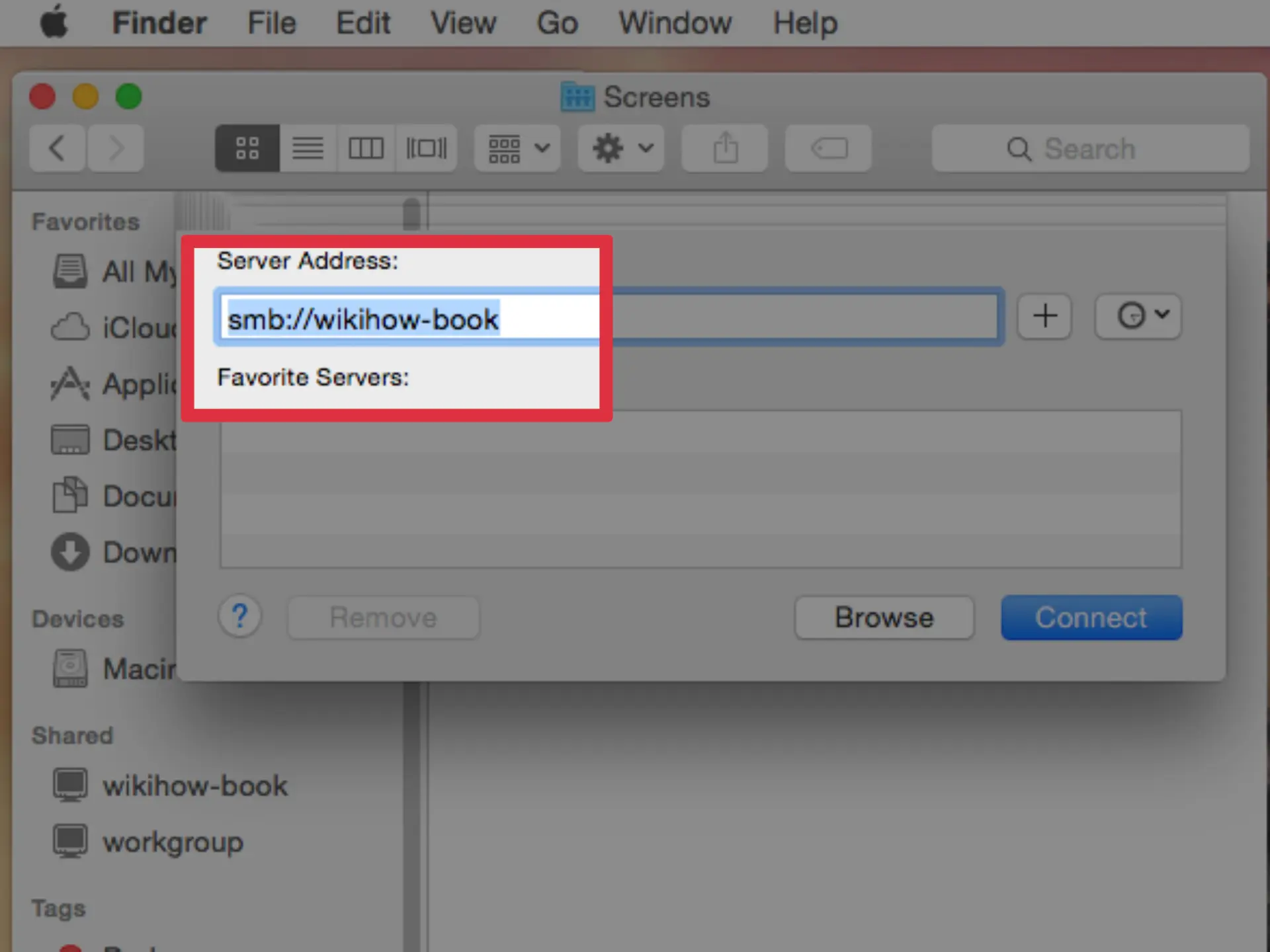
WikiHow has a great guide on how you can setup SMB shares on your computer, without even setting up a NAS. Consider this a good first step to understanding file sharing.
SMB is widely used on Windows and macOS. It allows shared folders on the NAS to appear as if they were local drives, making them easy to access from any desktop or file manager. SMB also supports browsing the network for available servers, which makes setup intuitive for new users. NFS, common in Linux environments, works differently. It mounts remote folders as part of the local file system, behaving much like a connected USB drive. NFS is generally faster and more efficient than SMB, but requires more manual configuration and technical understanding to set up properly.
Media Streaming and Libraries
One of the most popular uses for a NAS is to host a personal media library. This refers to a collection of digital files, typically movies, TV shows, music, and home videos, that you store and manage yourself. Instead of relying on streaming platforms like Netflix or Spotify, you provide the content, and the NAS serves it across your home network.
 Core Lab Joe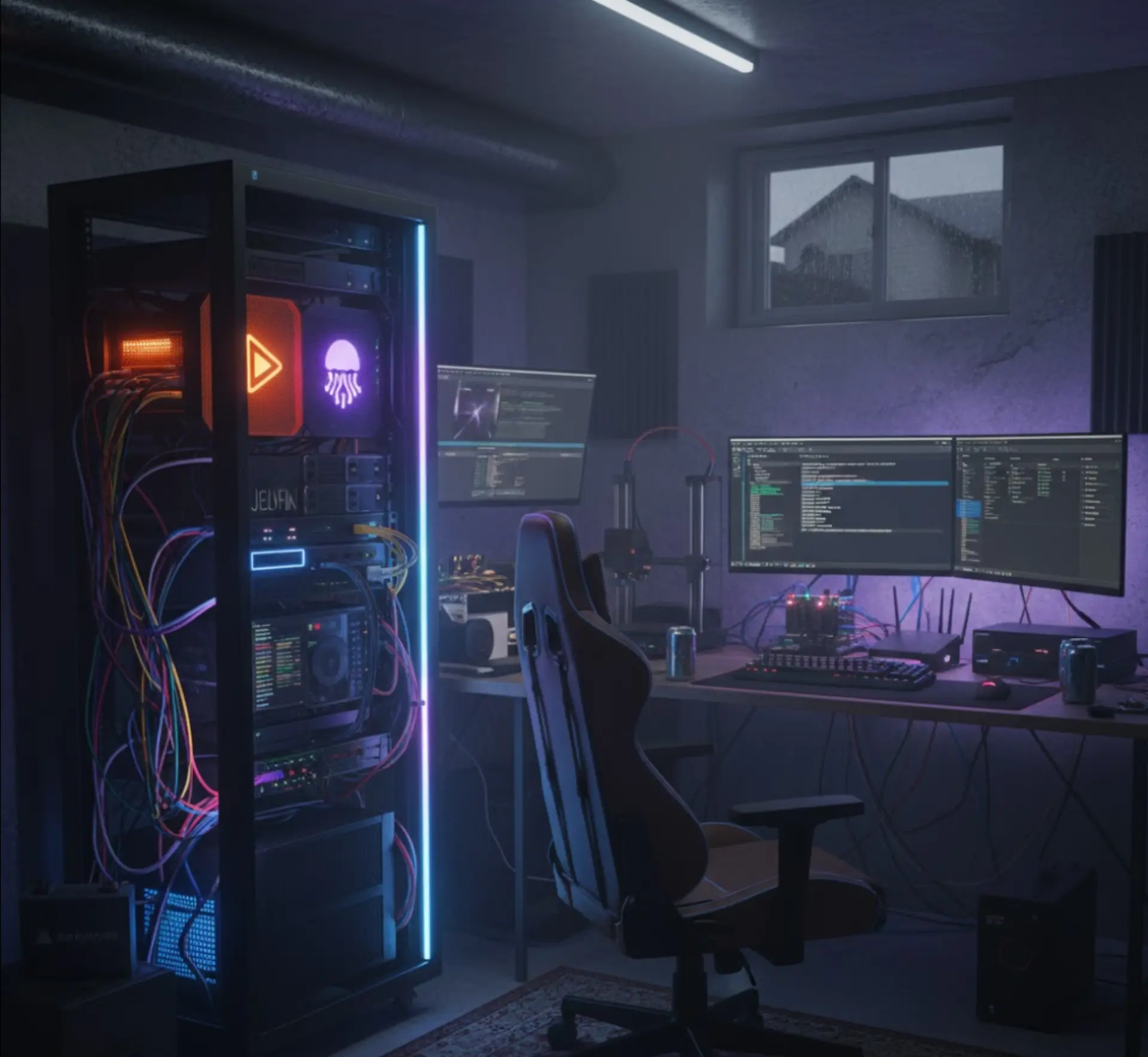
Core Lab has a good guide on the different types of Media Server Guide setup
Media collections come from different sources: ripping DVDs or Blu-rays, buying DRM-free files, or accessing harder-to-find material through less official channels. The NAS gives you a central place to store, organize, and access everything. Folders are typically sorted by type: TV shows by season, music by album, and movies by genre. Apps like Plex, Jellyfin, or Emby scan these folders, add artwork and descriptions, and present them in a polished interface.
 Core Lab Joe
Core Lab's guide on the Arr Stack, typically used to explore greyer channels of file downloads.
Playback works across most devices: smart TVs, phones, tablets, and consoles. With the NAS handling file delivery or video transcoding, you can stream your content anywhere in the house. Running your own media server avoids the restrictions and costs of subscriptions streaming services. It's a more permanent, personalized way to enjoy your collection, especially as content disappears from public streaming platforms.
Device Backups and Data Protection
A NAS is an ideal backup destination. Every computer, phone, or tablet eventually fails, whether from hardware issues, accidents, or user error. Files get deleted, drives wear out, and systems fall victim to malware or ransomware. A solid backup ensures that when something goes wrong, your data is still safe.
A NAS provides a central and always-available location for storing these backups. Both macOS and Windows support network-based backup systems. On macOS, Time Machine can back up directly to a shared folder on the NAS. Windows users can create system images or use third-party tools to store versioned backups to the same destination.
 Alex Denault
You need a backup. This article explains why.
Many NAS platforms include their own backup tools designed to work in the background. These systems often support incremental backups, which means only the changes since the last backup are saved. This approach saves time and storage space while keeping multiple historical versions of files. If you accidentally overwrite a document or suffer a data loss, you can roll back to an earlier version with minimal effort.
Home Surveillance
Some NAS platforms can serve as the backbone of a home surveillance system. By connecting one or more IP cameras to your network, you can use the NAS to record, archive, and review security footage without needing separate hardware. This setup turns the NAS into a basic Network Video Recorder (NVR)—a system that captures video streams from cameras and stores them for later viewing.
 Paul
Paul
Quick introduction to IP cameras to use with NAS
NVRs are typically used in commercial security setups. They support features like 24/7 recording, motion-based triggers, event logs, and camera grouping. Dedicated NVR appliances often include specialized hardware for video decoding and may support dozens of cameras. A NAS won't match that scale or performance, but for home use or small offices with a handful of IP cameras, it can be a cost-effective and flexible alternative. Some platforms, like Synology and QNAP, include native surveillance software with web dashboards, live feeds, mobile alerts, and event playback.
Home Automation
A NAS can also support the broader smart home ecosystem. Platforms like Home Assistant or Homebridge can run directly on the NAS, allowing it to integrate with smart lights, thermostats, sensors, and other networked devices. In this role, the NAS becomes a local controller for automating routines, aggregating data, and bridging products that were never designed to talk to each other.
 Derek Seaman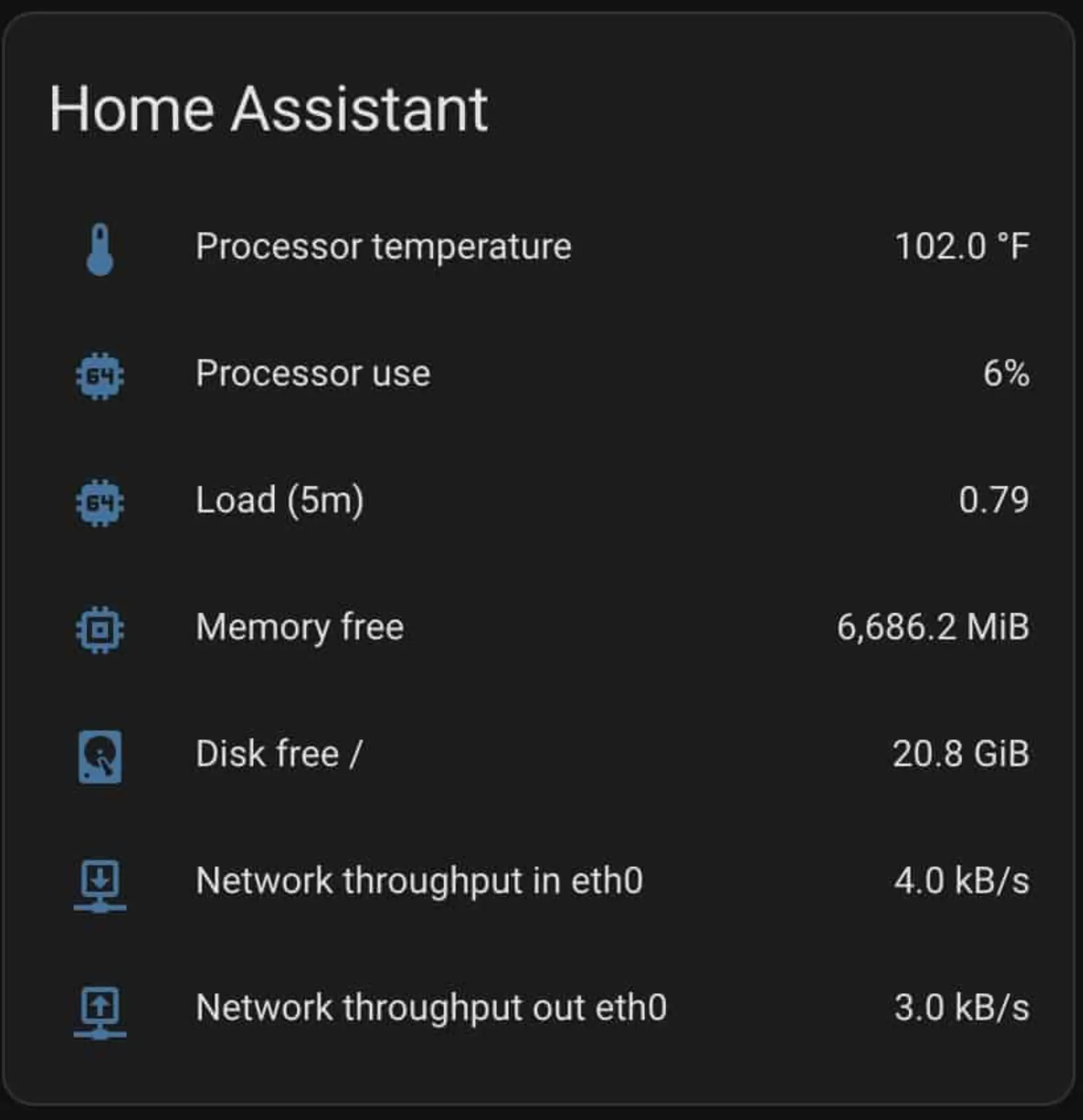
Derek provides a complete introduction to Home Assistant
The real power of these platform is getting different smart devices to work together, especially when they come from different ecosystem. For example, a motion sensor from brand A that turns on a light from brand B. The automations can be even more complex, where a sensor triggers lighting, adjust the thermostat, and open blinds. With a centralized platform like Home Assistant, all of this coordination happens locally, without relying on third-party cloud services or vendor-specific hubs.
Self-Hosting and Application Hosting
A NAS is not limited to file storage and media streaming. With the right software, it can serve as a lightweight platform for self-hosted services—tools and applications you normally rely on cloud providers to run. This opens the door to more privacy, greater customization, and the ability to experiment without ongoing subscription costs.
One common use is running personal productivity tools. Many NAS platforms support open-source applications like Nextcloud or FileRun, which offer browser-based file management, document editing, calendars, and contact syncing. These can act as local alternatives to Google Workspace or Microsoft 365, keeping your workflow private and under your control.


Rik describes his journey into self-hosted software.
NAS systems can also host internal services for your network. For example, running Pi-hole or AdGuard Home on a NAS can provide network-wide ad blocking and DNS filtering. These tools reduce tracking, speed up browsing, and give insight into which devices are making outbound connections. A NAS can also host a local Git server like Gitea for software development, or serve as an internal package mirror or container registry.
NAS systems that support containers (such as Docker) or virtual machines can host a wide range of other tools: password managers like Bitwarden, documentation platforms like Wiki.js, and even static websites or developer sandboxes. The key is that these services can all run in the background while the NAS continues to serve files, stream media, or manage backups.
Part 2 : Choosing your Hardware
Once you know what you want your NAS to do, the next step is choosing the hardware to match. This starts with one key decision: do you want to buy a prebuilt NAS, or build your own? From there, you’ll need to think about storage, performance, physical space, and future growth. The right hardware will depend on your goals, your technical comfort, and your budget.
Prebuilt NAS: Appliance Simplicity
For many users, the easiest way to get started with network storage is to buy a prebuilt NAS. These systems come as complete appliances: purpose-built enclosures with drive bays, cooling, power, and an operating system already installed. Setup is typically minimal: insert drives, power on, follow a browser-based wizard, and start sharing files.
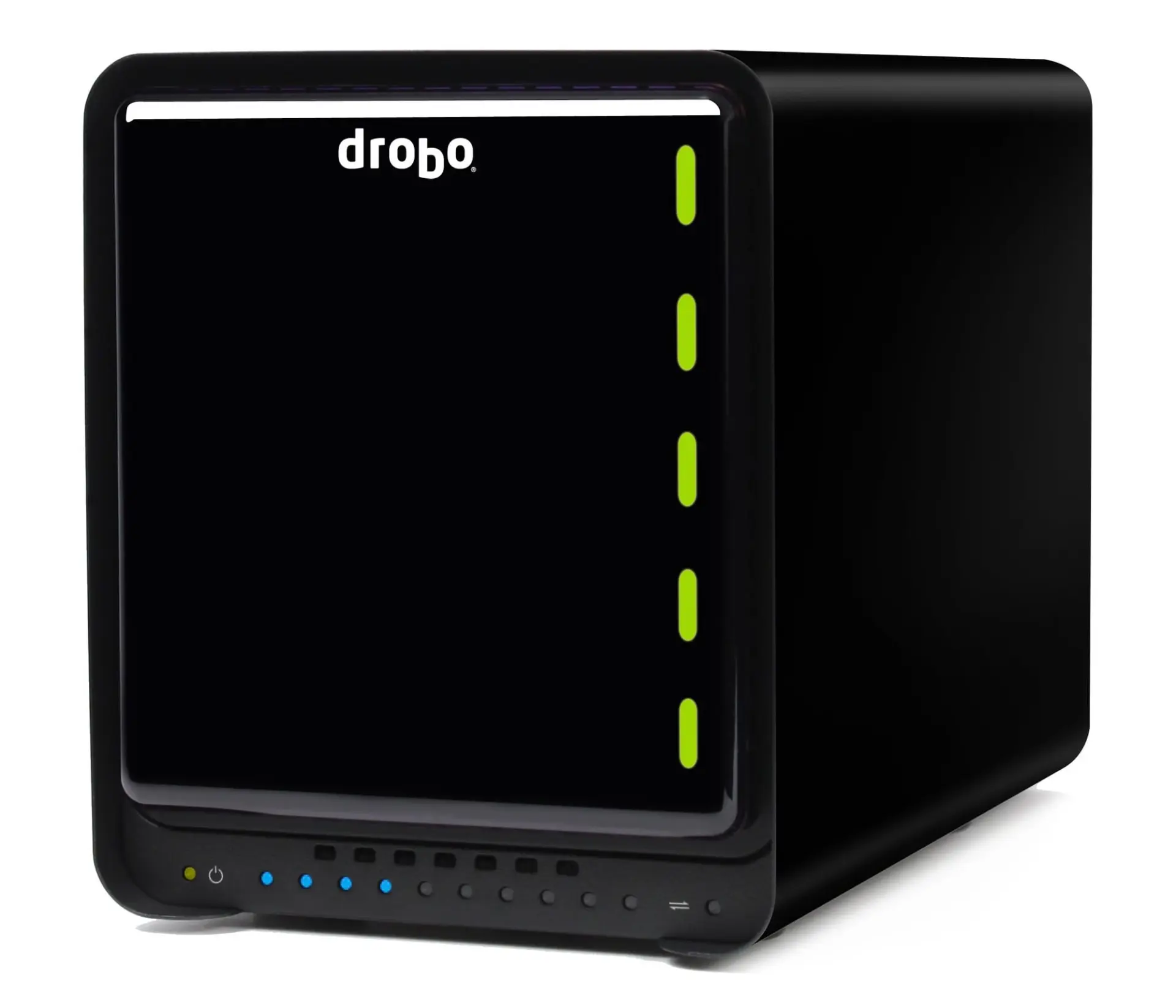
Prebuilt NAS devices are compact, energy-efficient, and quiet. They’re designed to run unattended in a living room, closet, or home office without requiring technical maintenance. Most include a user-friendly interface, regular software updates, and native apps for media streaming, backup, and cloud sync.
The main trade-off is flexibility. You’re locked into the vendor’s hardware design, limited in terms of CPU upgrades or PCIe expansion. In some cases, even memory and storage compatibility is restricted to approved parts. But for users who value convenience and stability over deep customization, prebuilt NAS units offer a polished, reliable experience.
Major Players in the Prebuilt Space
Several vendors dominate the consumer and prosumer NAS market.
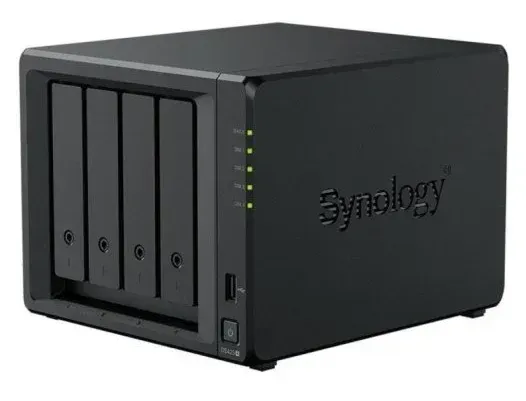
Synology is the best-known name in the space. Their DiskStation line runs DSM (DiskStation Manager), a mature and well-integrated operating system. DSM includes a full suite of features: file sharing, backups, photo libraries, Plex, Docker, and even virtual machines. Synology is known for its clean interface and steady software support. Typically more expensive than other NAS providers, and has been mired in controversy in the last year, locking down newer NAS to specific more expensive "approved" drives.
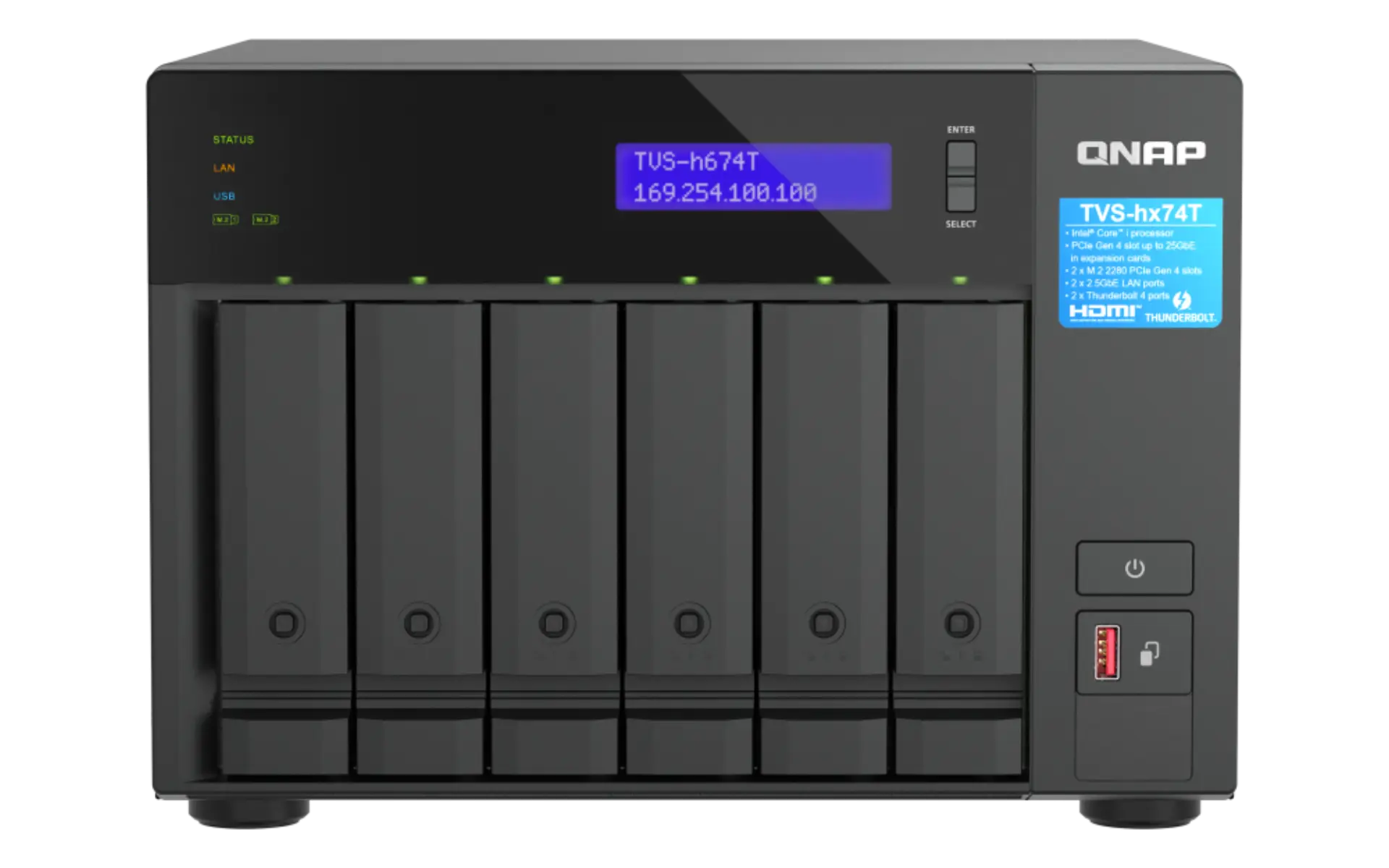
QNAP offers a broader hardware lineup, with options ranging from entry-level ARM systems to full x86 appliances with PCIe slots, 10GbE networking, and even GPU support. Their QTS operating system includes more customization options, targeting power users but lacks the polish of DSM. Some models support running both QTS and QuTS Hero (ZFS-based) depending on your needs.
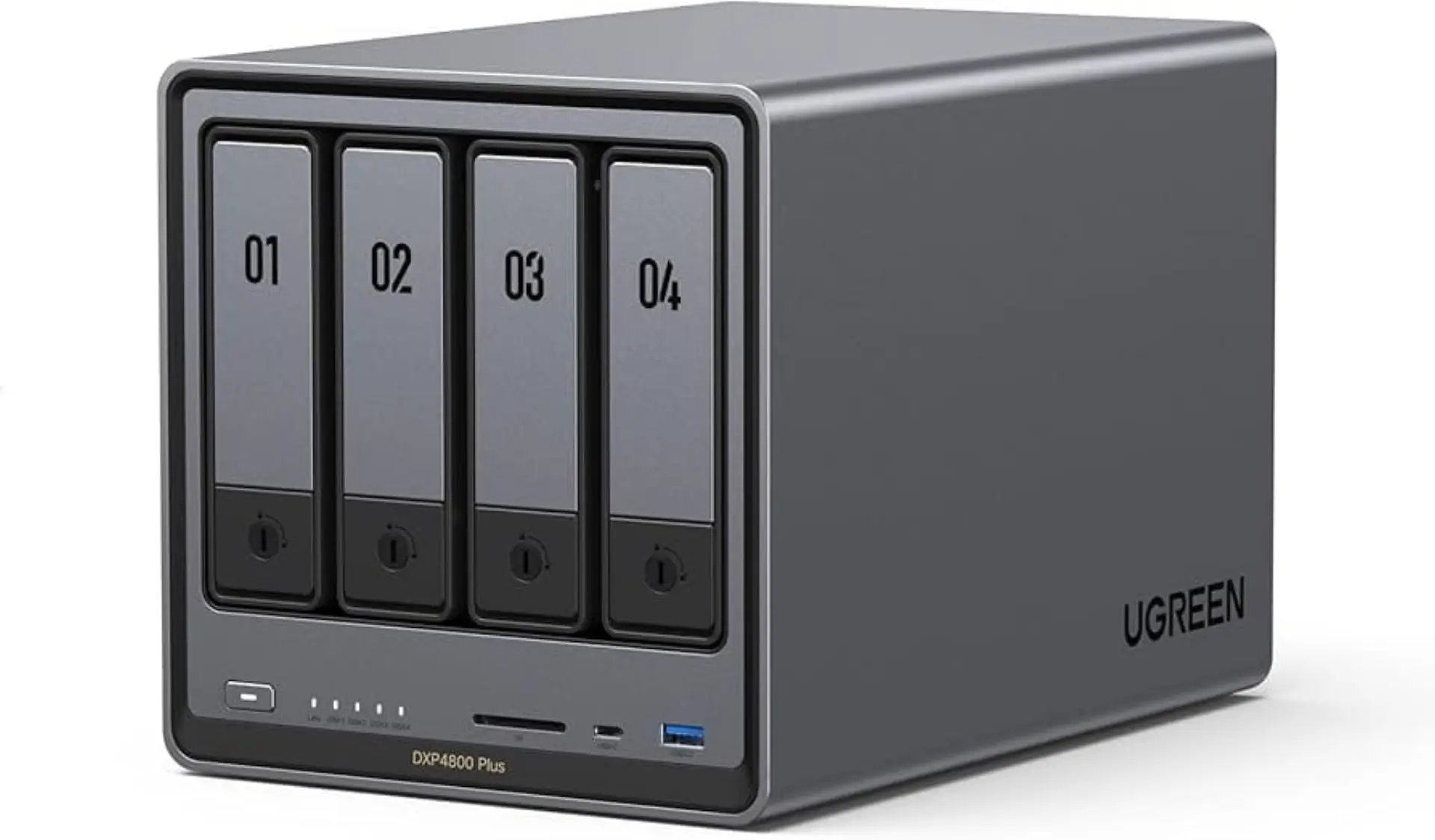
UGREEN is a newcomer to the market, better known for accessories and charging products. Their 4-bay NAS line launched in 2024 and offers surprisingly competitive specs. While the long-term support picture is still developing, early reviews point to solid hardware and an OS that balances simplicity and modern features. UGREEN's entry signals that the market is opening to new players beyond the traditional names.
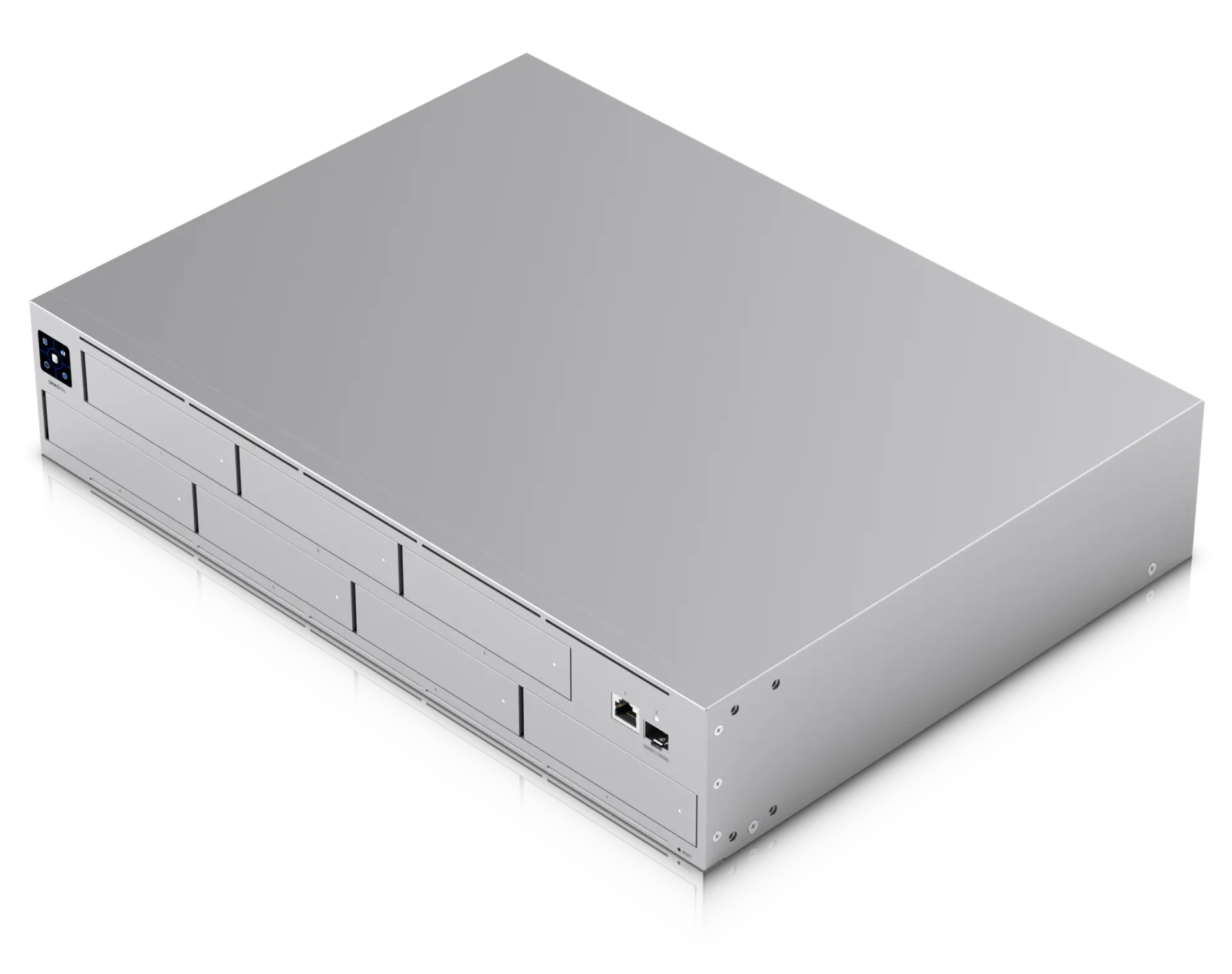
Ubiquiti recently entered the NAS market with its UXG NAS line, positioned as part of the UniFi ecosystem. These systems feature sleek industrial designs, integrated network management, and tight integration with other UniFi devices. However, unlike traditional NAS platforms, Ubiquiti offers no app ecosystem: there are no media servers, backup suites, or container runtimes. This is strictly a file-sharing appliance, aimed at users who need centralized storage within a UniFi-managed environment. While still early in its lifecycle, it may appeal to users already invested in Ubiquiti hardware who want a tightly integrated, cloud-managed file server with minimal overhead.
Other vendors, such as Western Digital’s My Cloud, Asustor, and TerraMaster, round out the rest of the consumer NAS market with their own custom platforms. While these systems often offer competitive hardware at lower prices, their ecosystems tend to be smaller, less mature, and receive less frequent software updates. When your data is on the line, platform stability and long-term support matter. Unless you have a specific use case or know exactly what you're getting into, it’s best to stick with the established providers.
Choosing the Right Prebuilt NAS
When comparing models, start with capacity. The number of bays determines how much storage you can add today and in the future. Two-bay models are common for personal use, while four-bay systems offer better redundancy and growth potential. Some vendors also offer expansion units that connect over proprietary cables, at a price.
Next, consider performance. Entry-level units with ARM processors and 1 or 2 GB of RAM are fine for basic file serving and backups. If you plan to run Plex, download files, or containerized apps, look for models with x86 processors (Intel or AMD) and 4 or 8 GB of RAM or more. Some models support hardware transcoding for video playback, though limitations vary between vendors.
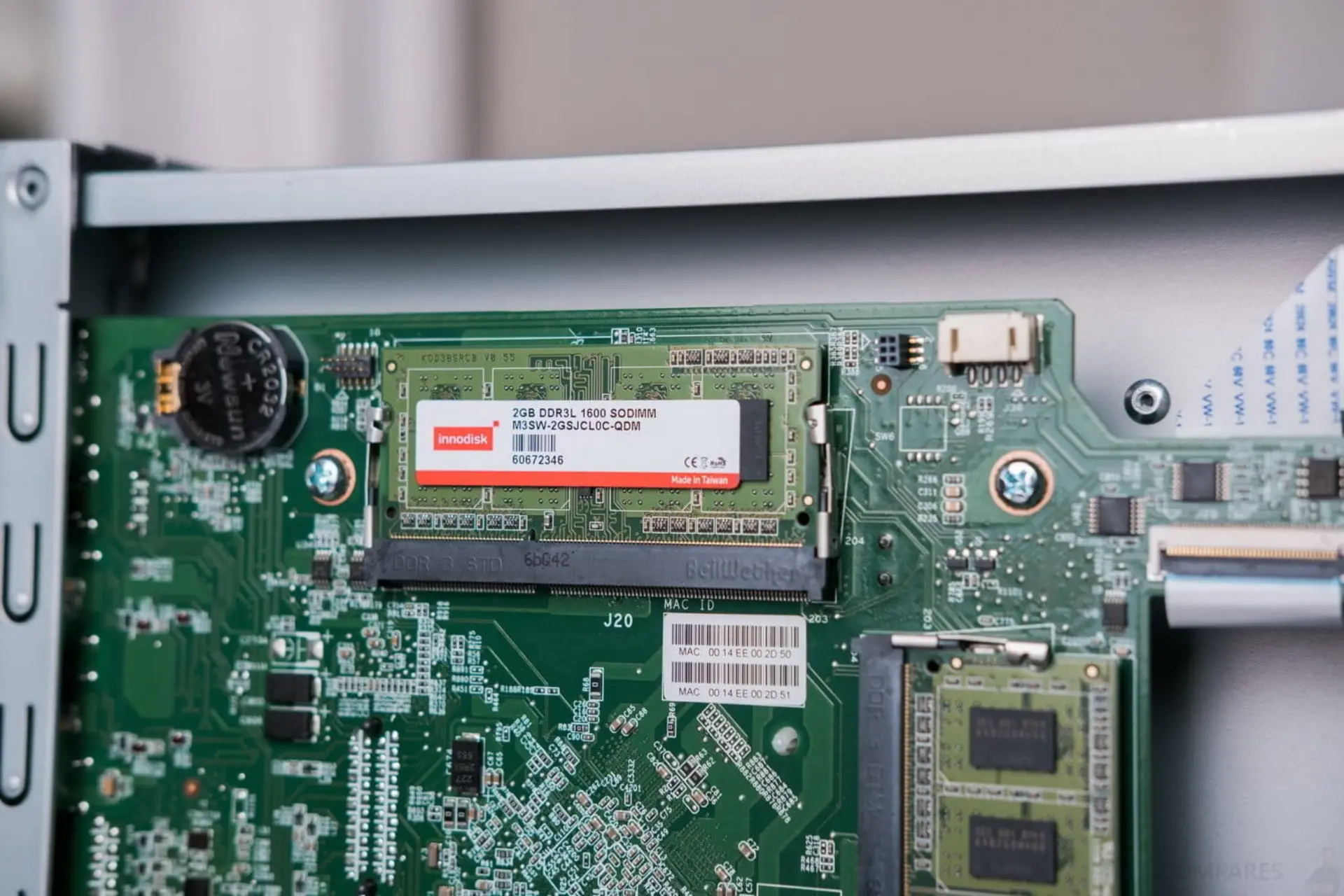
Also consider the upgrade path. Can you add more memory? Does the model support SSD caching or faster network cards? Some systems offer standard slots and interfaces, while others impose strict compatibility requirements. For example, certain Synology units will warn users, or even block features, if non-approved hard drives are installed. These approved components are often more expensive, and the restrictions can limit flexibility over time.
Ecosystem and Operating System Options
Each vendor offers a custom OS tuned for their hardware. Synology’s DSM and QNAP’s QTS are the most fully featured, with support for third-party packages, Docker containers, and native mobile apps. These platforms include polished solutions for cloud sync, photo management, surveillance, and even web hosting.
 Alex Denault
Docker has revolutionized how applications get deployed, both at the enterprise level and homelabs.
In most cases, the OS is part of the package, but a few vendors, particularly at the budget end, now allow you to install alternative storage-focused operating systems. This is especially useful if you outgrow the vendor OS or want more control over storage pools, ZFS, or container management. That said, always check the vendor's documentation for compatibility information before assuming a third-party OS will work.
DIY NAS: Four Common Builds
Building your own NAS opens the door to complete customization. You choose the hardware, the software, and the layout that fits your needs. Whether you're trying to reuse existing gear, keep costs low, or assemble something more capable than any prebuilt box can offer, the DIY route offers unmatched flexibility.
That said, the DIY world can be overwhelming. To keep things grounded, this section focuses on four practical build types that cover most home NAS use cases. Once you've built your NAS, you will need to choose an Operating System for it.
1. Repurposed Desktop
The easiest and most affordable option is to reuse an old desktop PC. If it has enough storage ports and room for a few hard drives, it can become a functional NAS with minimal investment. This is a great way to experiment with NAS software and basic configurations without buying new hardware.
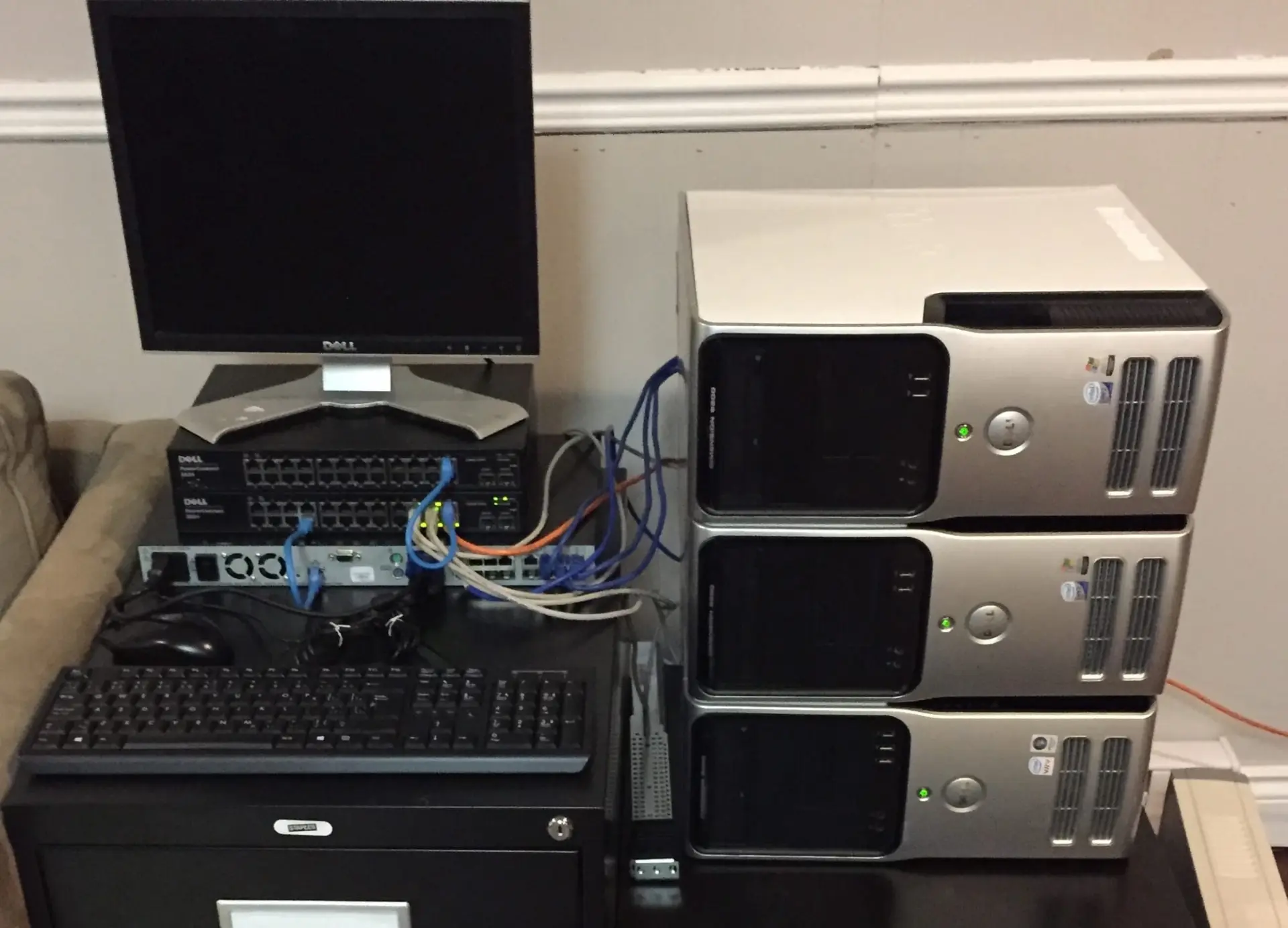
Repurposed systems work well for tasks like file sharing, PC backups, or even media streaming. Older Intel CPUs often support hardware-accelerated video transcoding, which can help with Plex. Most DIY NAS operating systems run comfortably on older hardware, provided it’s stable. However, there are some limitations. Most older system only have space for a couple of drives, and are not very power efficient. That said, if you already have the hardware, this is a low-risk way to get started.
2. Single-Board Computer (Raspberry Pi and Friends)
Single-board computers like the Raspberry Pi 4, ODROID HC4, or Radxa Rock 5B offer a compact and low-power way to build a NAS. They're silent, energy-efficient, and widely supported by popular NAS operating system. However, storage is the critical constraint. These board will commonly lack the multiple SATA connections require by modern hard drive. While users can use USB drives, this setup is often unreliable. Sudden disconnections, underpowering issues, and write failures are common under sustained load. For a stable build, SATA HATs or native SATA ports are essential.
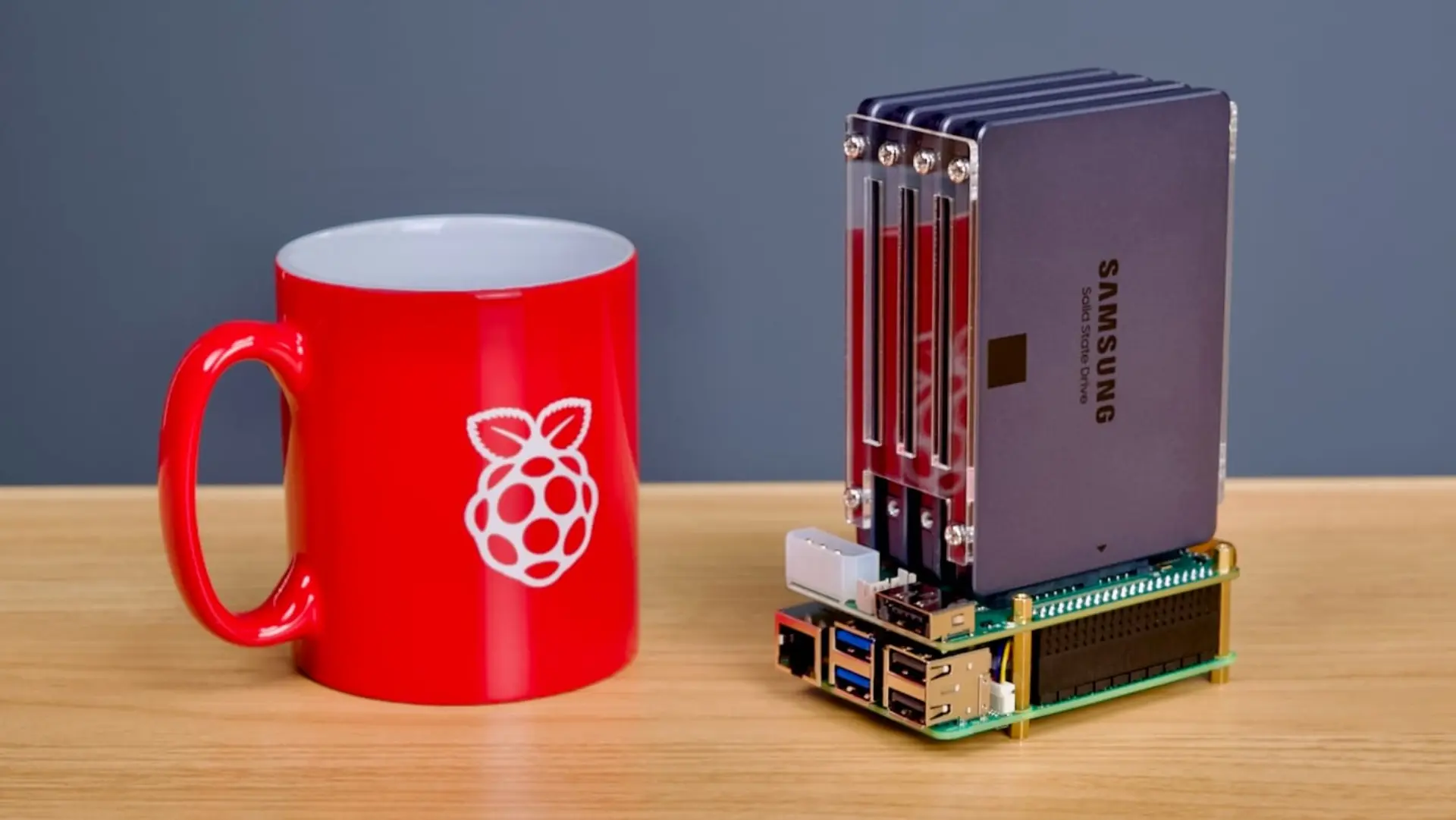
SBC-based NAS systems are best suited for low-demand scenarios: backups, file sync, or running a small number of services. They're especially good as a secondary NAS or remote backup node.
3. Used Enterprise Hardware
Second-hand enterprise servers offer excellent value for large-scale storage. Older models from Dell PowerEdge, HP ProLiant, or Supermicro are built for uptime, often come with hot-swap drive bays, and typically support fast networking and storage interfaces. These systems shine in scenarios where you need a lot of drives or plan to run virtual machines, automation platforms, or high-bandwidth file operations. They're also a natural fit for ZFS-based storage configurations.
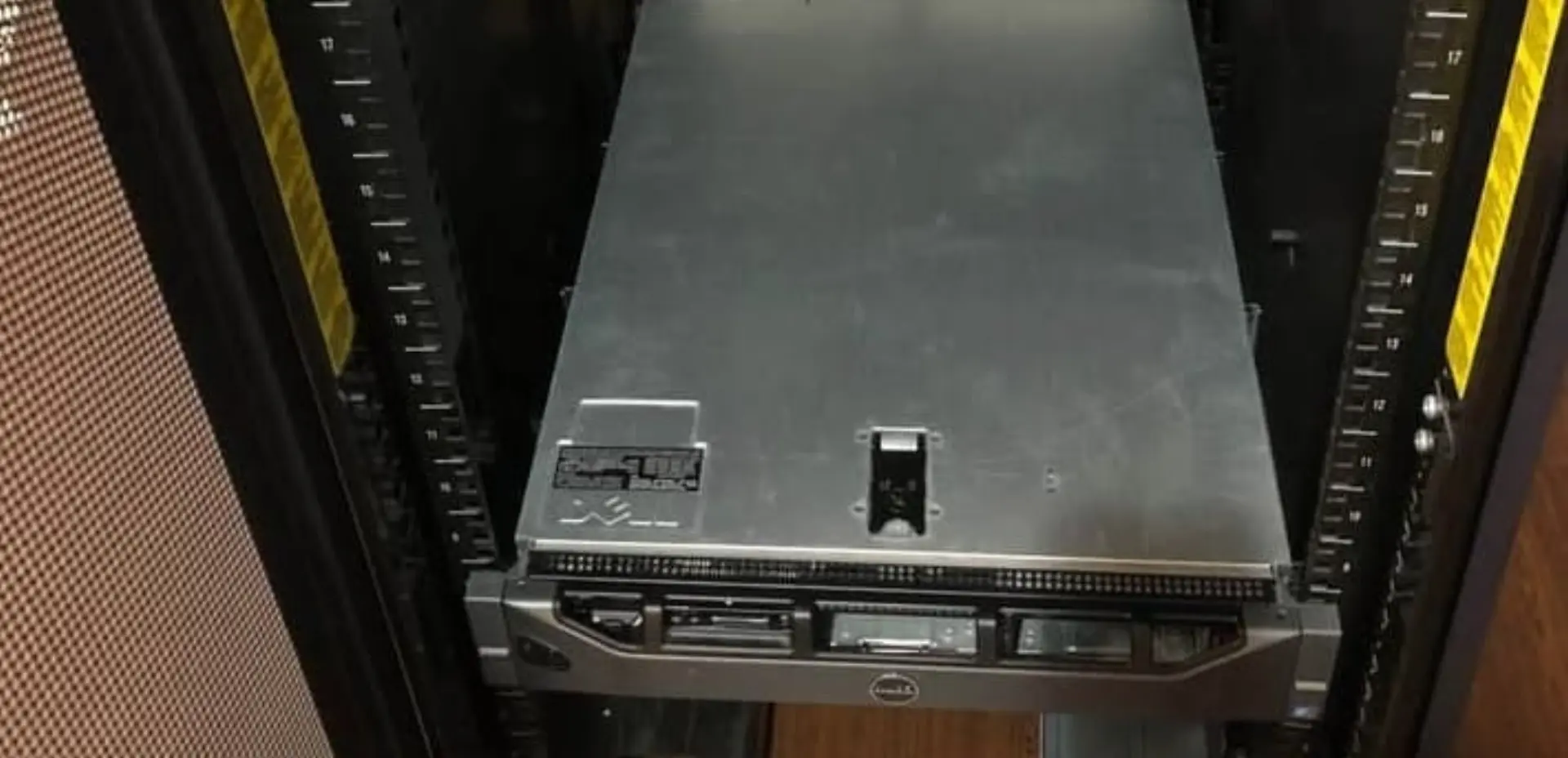
The drawbacks are obvious: enterprise servers are loud, power-hungry, and not suited for use in shared living spaces. Firmware quirks and noisy fans are part of the deal. But if you have space to isolate the system, like a garage, basement, or rack closet, it’s a cost-effective way to build serious storage capacity.
4. New Build from Scratch
Building a NAS from new parts offers the cleanest and most tailored experience, but also the highest cost. You can prioritize silence, performance, form factor, or expandability. Everything from the case to the power supply can be chosen to match your goals. This is the best option if you want a quiet NAS that lives in your home office, or a compact system that also handles Plex, Home Assistant, and Docker workloads. Mini-ITX and Micro-ATX cases are popular for small NAS builds, with plenty of options that support five or more drives and low-noise cooling. Full size ATX board are interesting alternative, as the offer more SATA ports, and can incorporate enterprise features.
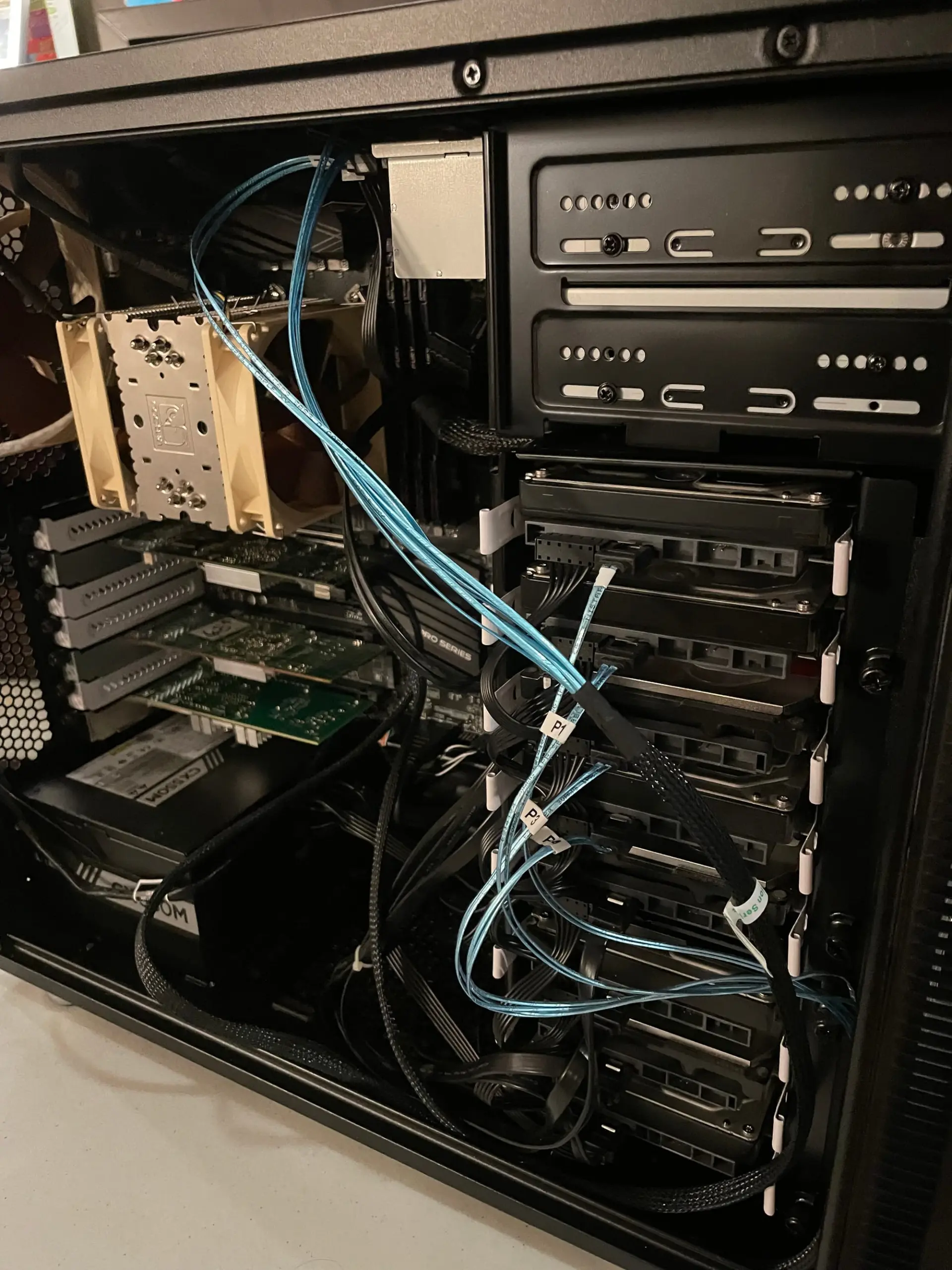
A new build requires more research and planning, especially around part compatibility and storage layout. But it offers the most control, and the result is a system that fits your needs exactly with no compromises.
HDD vs SSD: Choosing the Right Storage
The drives you choose for your NAS affect everything from performance to noise to total cost. Hard disk drives (HDDs) offer lots of space at a low price, while solid-state drives (SSDs) bring speed and silence at a higher cost. Understanding the trade-offs helps you build a system that fits your workload and budget.
HDDs are ideal for bulk storage: media libraries, backups, and file archives. They offer the best value per terabyte and are widely available in large capacities. Because NAS systems often run 24/7 and house multiple spinning disks in close quarters, drive vibration and thermal stress become serious concerns. This is why it's important to use drives specifically designed for NAS environments, like WD Red or Seagate IronWolf. Although more expensive than consumer drives, they offer greater peace of mind for your precious data.
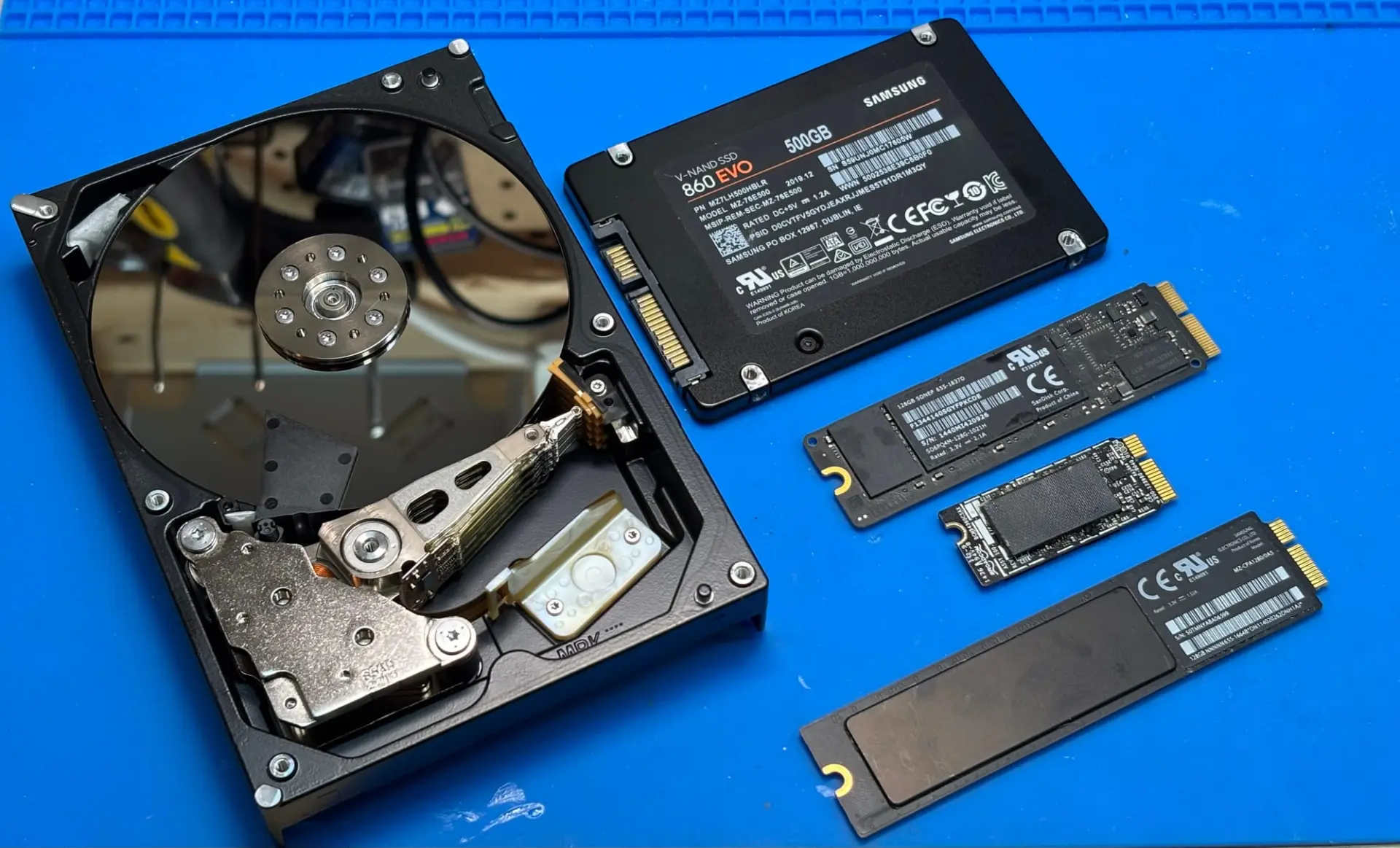
SSDs excel in speed-critical roles. They’re silent, fast, and perfect for running apps, virtual machines, or hosting active project files. Even a modest SATA SSD can make a noticeable difference in responsiveness. SSDs are expensive per gigabyte, but useful for caching, boot drives, or workloads where latency matters.
Many systems combine both. HDDs handle capacity, while SSDs serve as caches or run specific services. This hybrid setup is supported by most NAS platforms and offers a practical balance between performance and cost.
Storage Layout: JBOD and RAID
A NAS is rarely about a single drive. Most systems use multiple disks, and how those disks are organized—into arrays, mirrors, or pools—has a direct impact on performance, reliability, and capacity. These storage configurations, collectively referred to as RAID (Redundant Array of Independent Disks), come in several common layouts:
- RAID 0: Data is striped across two or more drives for speed and capacity. There is no redundancy—if one drive fails, all data is lost. Not recommended for NAS use unless paired with strong, frequent backups.
- RAID 1: Data is mirrored between two drives. If one fails, the other continues to operate. Simple and reliable, but you lose half the total storage capacity.
- RAID 5: Data and parity are striped across three or more drives. If one drive fails, the array can be rebuilt from parity. Offers a good balance of capacity and redundancy, but rebuilds are slow and stressful on aging disks.
- RAID 6: Like RAID 5, but with two parity blocks. Can tolerate two simultaneous drive failures. More resilient, but with reduced usable capacity.
- RAID 10 or 1+0: A stripe of mirrored pairs (requires at least four drives). Combines speed and redundancy, but only half of total capacity is usable.
There are several reasons to spread data across multiple drives. You might want to increase total storage by combining smaller disks, improve performance by reading from or writing to multiple drives at once, or introduce redundancy to protect against hardware failure. The best RAID layout depends on your needs, workload, and tolerance for risk.
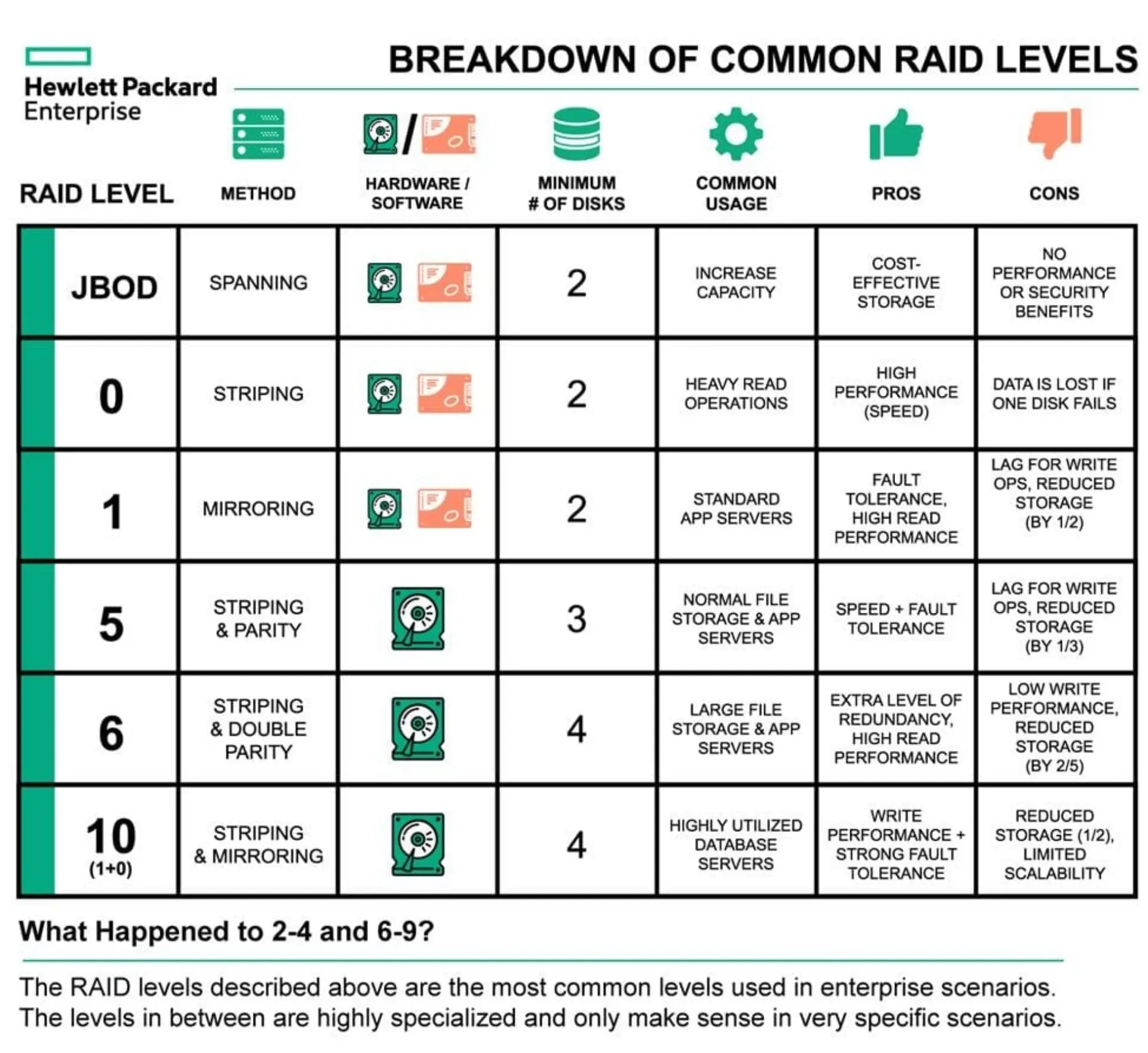
In home and small business NAS systems, software RAID is typically used to manage this redundancy and performance. These systems rely on the operating system to control how data is distributed across disks, offering better transparency and easier recovery than hardware RAID. To support this, drives are usually configured in JBOD (Just a Bunch of Disks) mode, allowing the OS to see and manage each disk individually. JBOD isn't a redundancy method on its own—it's simply the starting point for building a flexible, software-managed storage layout.
Software RAID Options
Different NAS platforms offer different RAID implementations, each with their own strengths and trade-offs. Some are traditional arrays, while others use more modern approaches to redundancy and pooling.
- ZFS: A robust file system and volume manager in one. ZFS uses pools made of vdevs, and supports layouts like RAID-Z1, RAID-Z2, and RAID-Z3. It includes features like snapshots, checksumming, and scrubbing, but requires more RAM and careful planning. ZFS offers few options for expandability, although this is improving with time.
- Unraid: Not a traditional RAID system, each drive is formatted individually, and a parity disk provides redundancy. Drives can be of any size, and only the parity and active data drive spin during access, reducing power usage. It’s flexible and easy to expand, but slower for certain write operations.
- mdadm (used in Linux, including OpenMediaVault): A traditional Linux software RAID system. Supports standard RAID levels (0, 1, 5, 6, 10). Works well with ext4 or XFS file systems. Mature and stable, but lacks the integrity protections of modern solutions, like ZFS or BTRFS.
- Storage Spaces (Windows): A volume management feature built into Windows Server and Windows 10/11 Pro. Supports mirroring, striping, and parity layouts. Useful for Windows-based NAS setups.
- BTRFS: A modern file system that includes checksumming, snapshots, and pooling features. Often paired with traditional RAID or SHR. Not as mature as ZFS, but user-friendly and supported in many prebuilt NAS environments.
Each system has its own advantages and limitations. Some are optimized for data integrity, others for flexibility or ease of use. Some allow for expansion one disk at a time, while others require more planning. No system is perfect for every use case. Ultimately, the type of redundancy you will use will be dictated by your NAS platform.
Memory (RAM)
How much memory your NAS needs might depends on what you're running, but as a rule, more is better. RAM doesn’t just affect how many apps you can open or how fast the NAS boots. It plays a direct role in how your storage system performs under load.
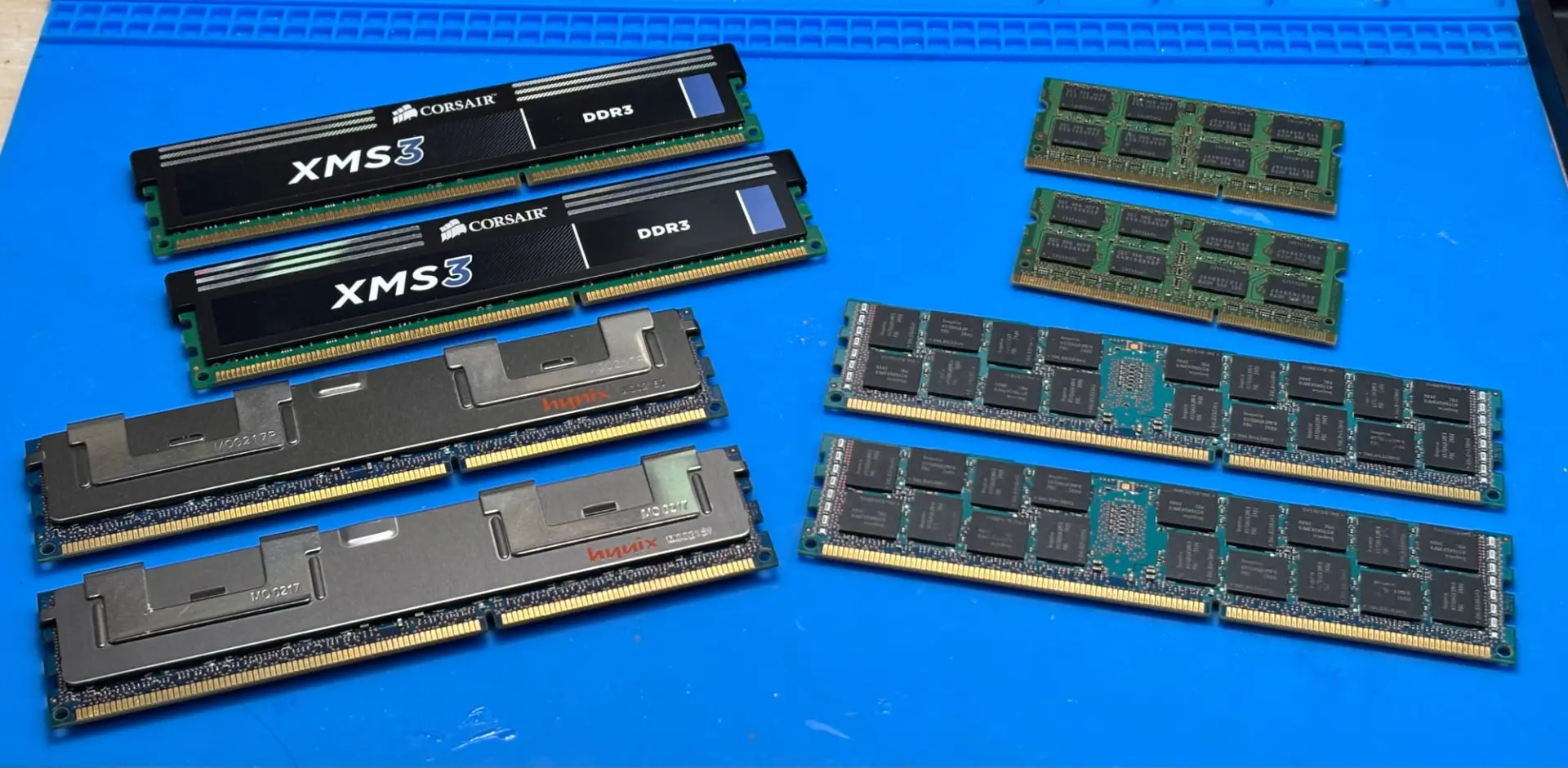
Every NAS operating system uses RAM to cache file system activity. Frequently accessed files, directory listings, and system operations are held in memory to avoid repeated disk reads. More RAM means a larger cache, which means faster response times, especially if multiple users are accessing the NAS or if you're working with a large media library. If you're running a modern raid solution, like ZFS or BTRFS, memory becomes even more critical, as they use RAM aggressively to cache reads and hold metadata structures.
Beyond storage, RAM matters for services. Docker containers, virtual machines, media indexers, and sync tools all consume memory. Even lightweight apps like Plex or Home Assistant benefit from more headroom, especially during scans or updates.
Networking
Your NAS is only as fast as your network allows. While Gigabit Ethernet (1 GbE) is standard, it's increasingly the baseline. For larger file transfers or media editing, faster links like 2.5 GbE, 5 GbE, or 10 GbE are worth considering. These options are now more affordable and supported by many mid-range NAS units and consumer switches.
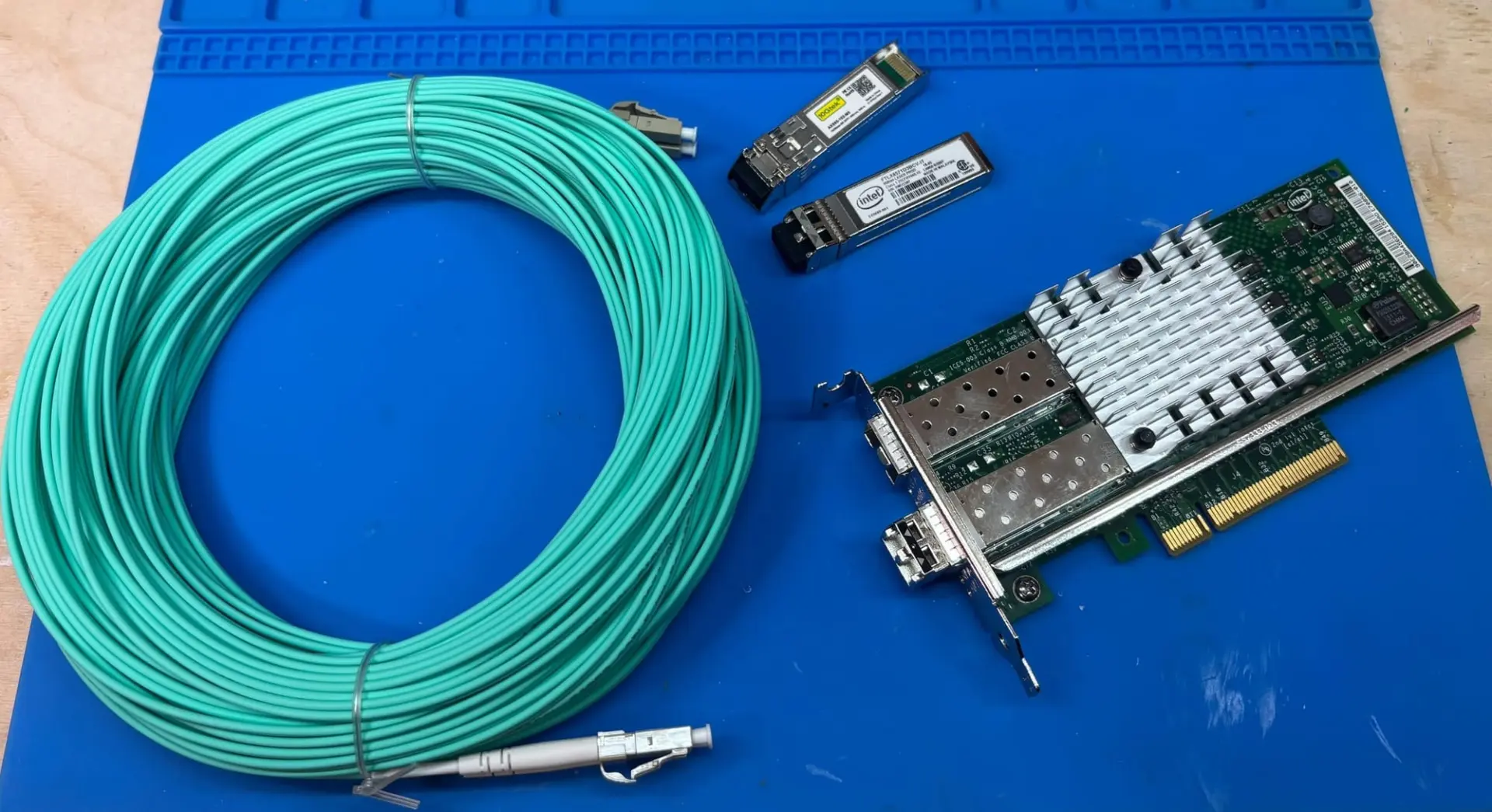
That said, your hardware needs to keep up. A typical RAID of hard drives may not saturate a 10 GbE link, but could benefit from 2.5 or 5 GbE. If you're aiming for full 10 GbE performance, fast storage like SSDs are essential.
External Expansion
A NAS can outgrow its case. External ports and enclosures offer ways to add storage or move data without opening the chassis. Understanding the options helps you pick the right tool for your workflow.
USB ports are great for one-off backups or importing data. USB 3.0 offers up to 5 Gbps, but real-world speeds are often closer to 200–300 MB/s. They're fine for occasional tasks but not reliable for constant NAS workloads. A brief USB disconnection may not matter for a single disk, but in a RAID array it can desynchronize the set and trigger a rebuild, potentially risking data. Many USB setups also share a common bus, limiting bandwidth, and handling power delivery across multiple enclosures or adapters can be a constant source of failure. These limitations make USB a poor choice for anything beyond temporary use.
eSATA offer more stable options for adding drives. These deliver better throughput than USB and are less prone to sudden disconnection. However, eSATA interfaces supporting more than one disk are rare, and share many of the disadvantages of individual USB drives.
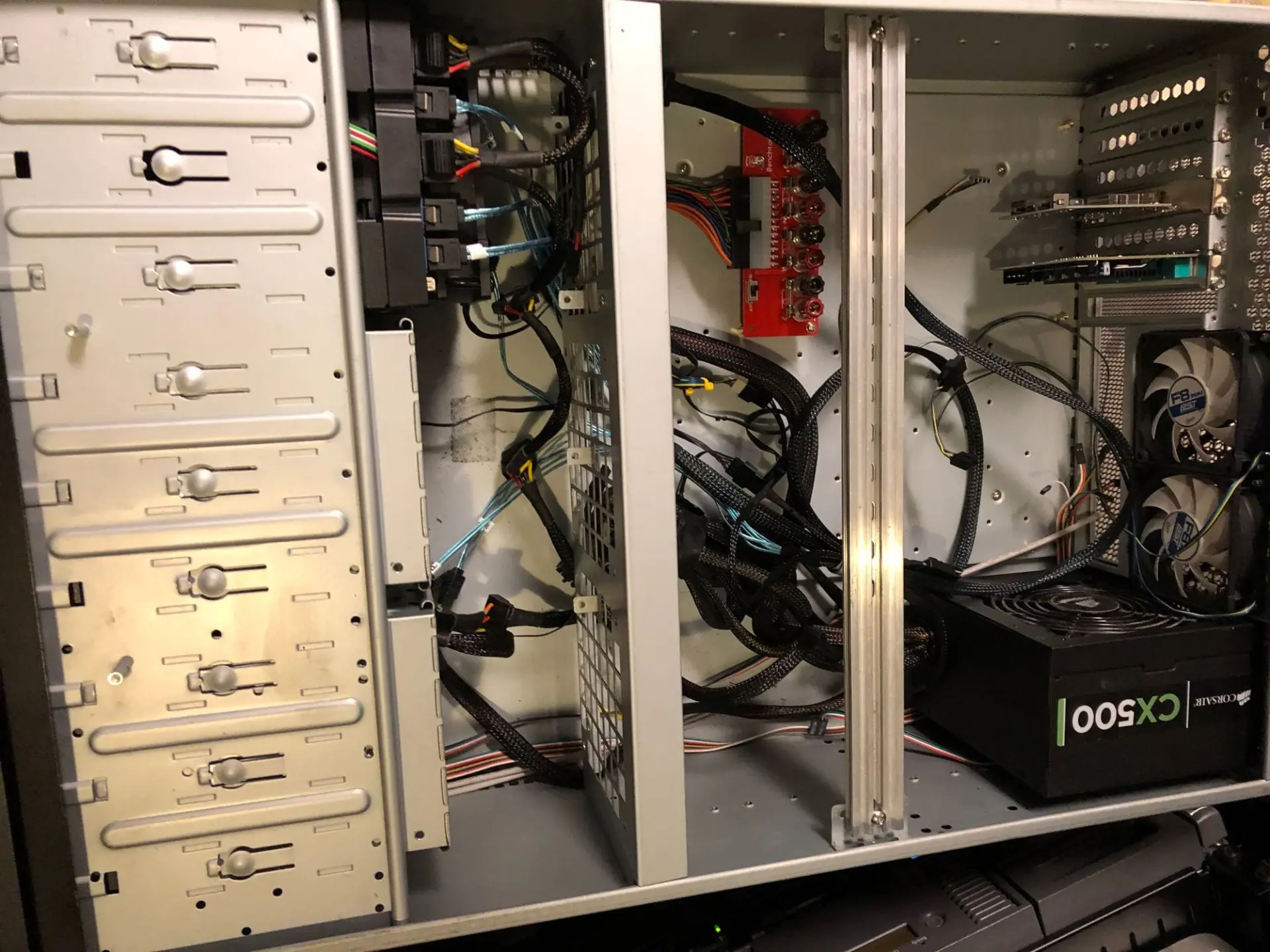
Direct-Attached Storage (DAS) enclosures solve the problem of handling multiple external devices by hosting them in a single box. Connected through USB, eSATA or the ever more reliable SAS protocol, they can be purchase, or even built. Ideally, they expose the individual drives (JBOD) so allow for software raid. Avoid DAS offering built-in RAID solutions, as they are impossible to troubleshoot if the RAID array ever become corrupted.
Part 3 : Setting up your NAS
At the center of every NAS is its operating system, the software that manages storage, handles network access, and runs services like backups, media servers, or containers. Some platforms come with their OS pre-installed (like Synology or QNAP), while others give you the freedom to choose your own. Either way, the OS defines how your NAS works day-to-day.
NAS operating systems vary widely in design, features, and philosophy. Some prioritize ease of use, others favor advanced storage management or application hosting. Licensing also differs: some are free and open source, others require a paid license to unlock key features.
Choosing the right OS means balancing your technical comfort, your workload, and the kind of system you want to run. Below are the most common options for home and homelabs users.
TrueNAS (formerly CORE and SCALE)
TrueNAS is the unified successor to the former CORE (FreeBSD) and SCALE (Linux) variants. Today, it is built on a hardened Debian base and designed for data integrity first. It uses ZFS for storage management, offering snapshots, scrubbing, replication, and strong protections against data corruption.
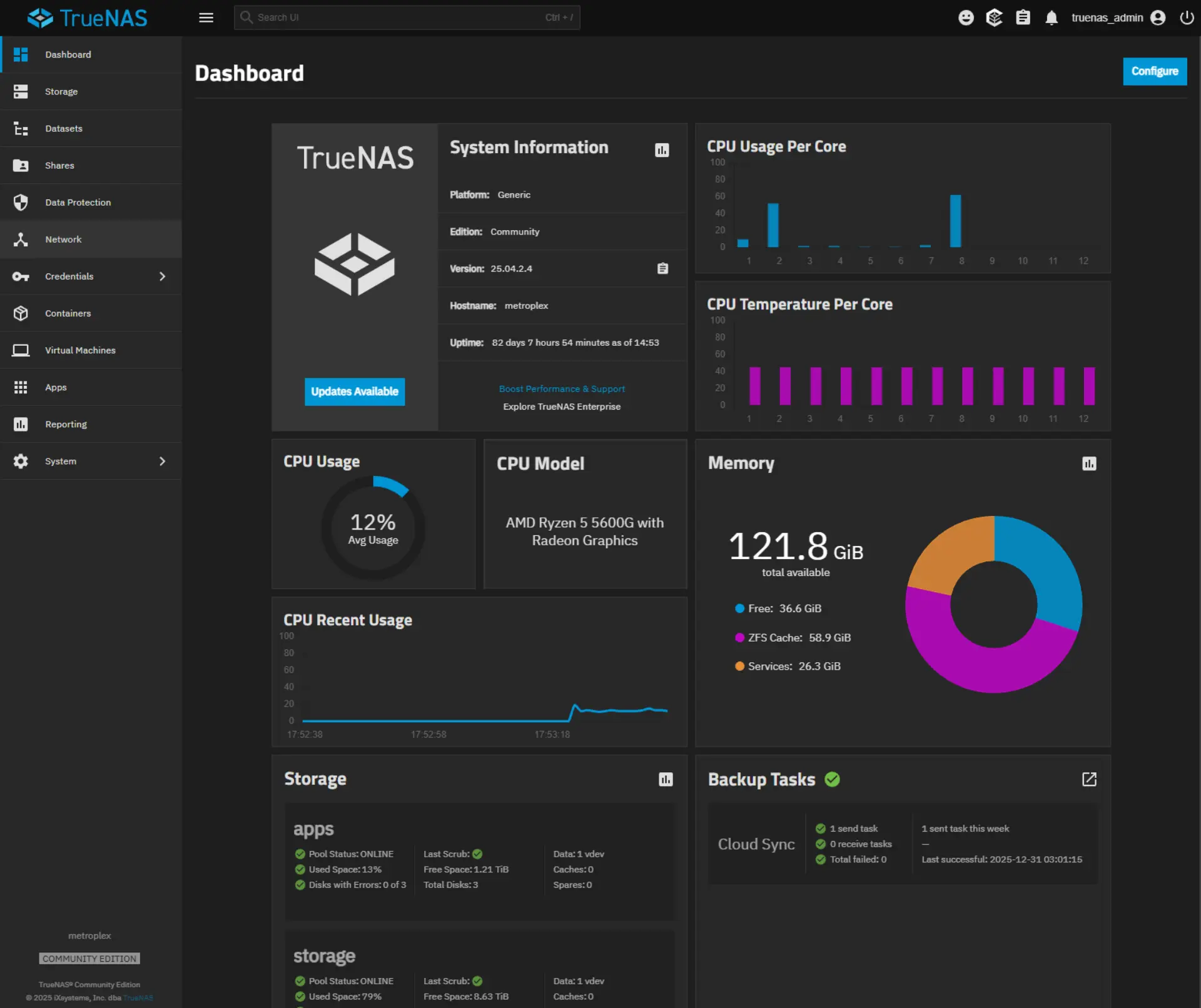
TrueNAS provides a robust web interface, a community-backed application catalog (Plex, Nextcloud, etc.), and TrueNAS Command Center for remote multi-system management. While it no longer supports S.M.A.R.T. monitoring directly in the GUI, ZFS handles most of the same responsibilities through pool health reporting.
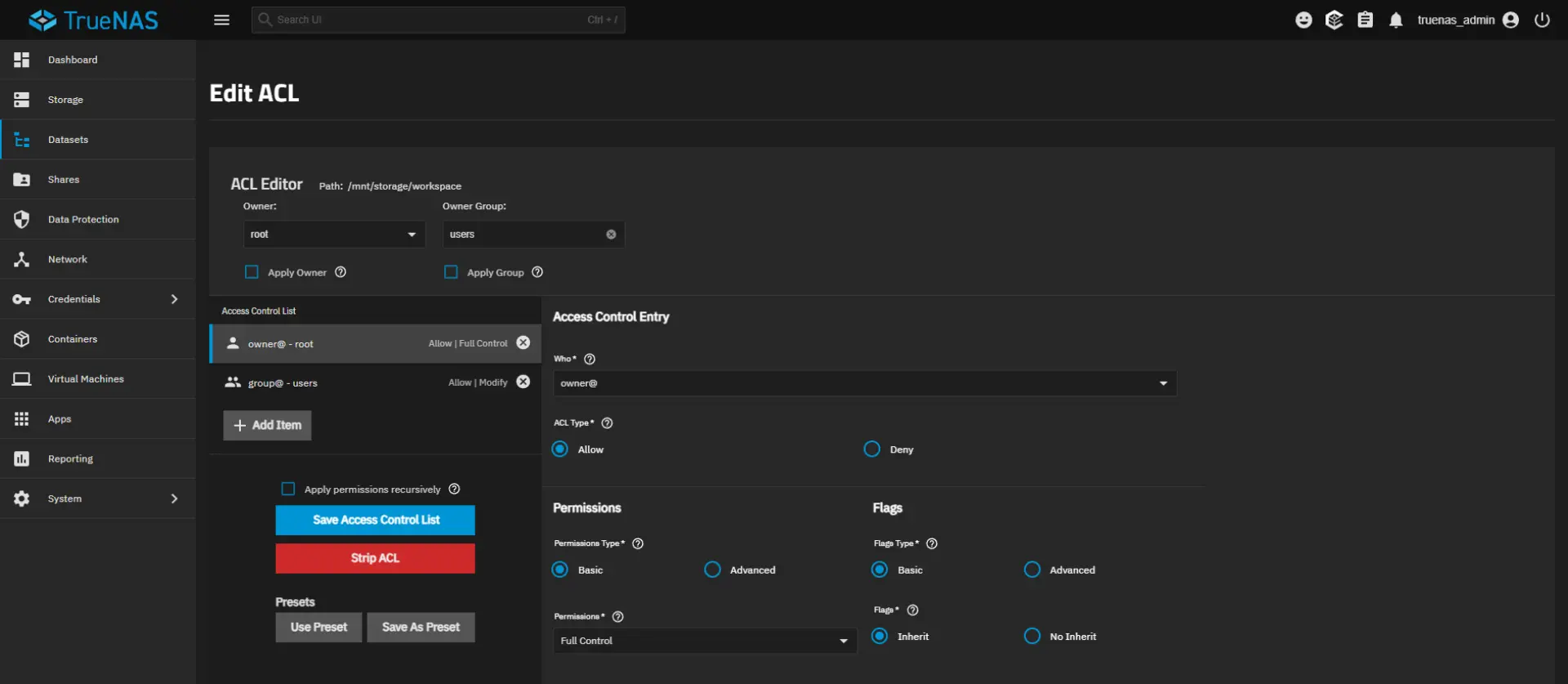
TrueNAS is fully open source and free to use, though iXsystems also offers enterprise support plans. It requires more memory and storage planning than other platforms and is most likely the most difficult offering to learn, but delivers unmatched resilience for critical data.
Unraid
Unraid takes a flexible approach to storage, using a per-disk parity model rather than traditional striping. This allows drives of different sizes to be mixed, with one or two dedicated parity disks providing redundancy. Each data disk uses its own file system, and only the active disk spins up during reads—saving power and reducing wear.
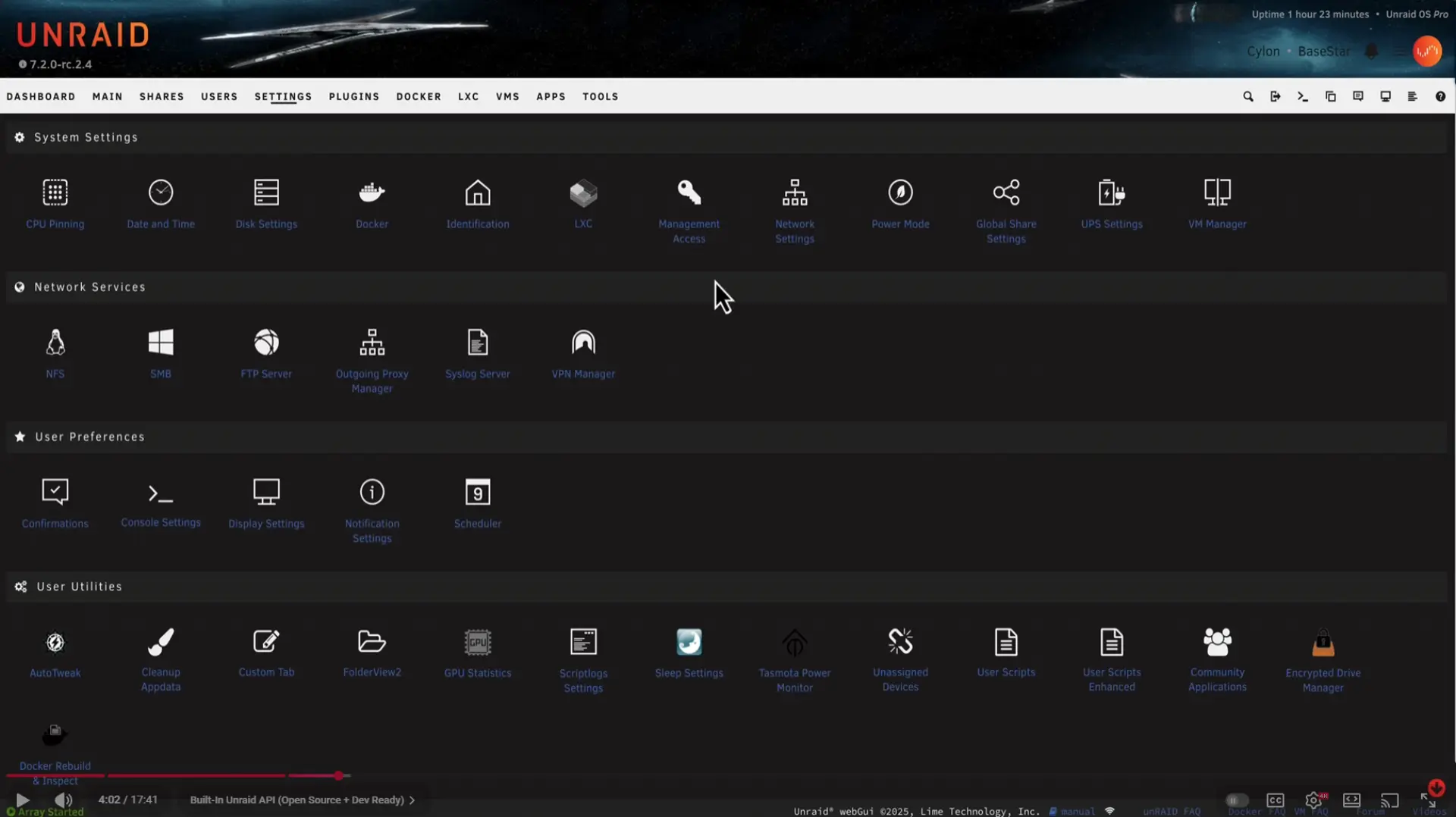
Unraid is known for its excellent Docker and virtual machine support, making it a favorite among homelab and media server users. It includes a large plugin and community app ecosystem, and a web interface that balances power and usability.
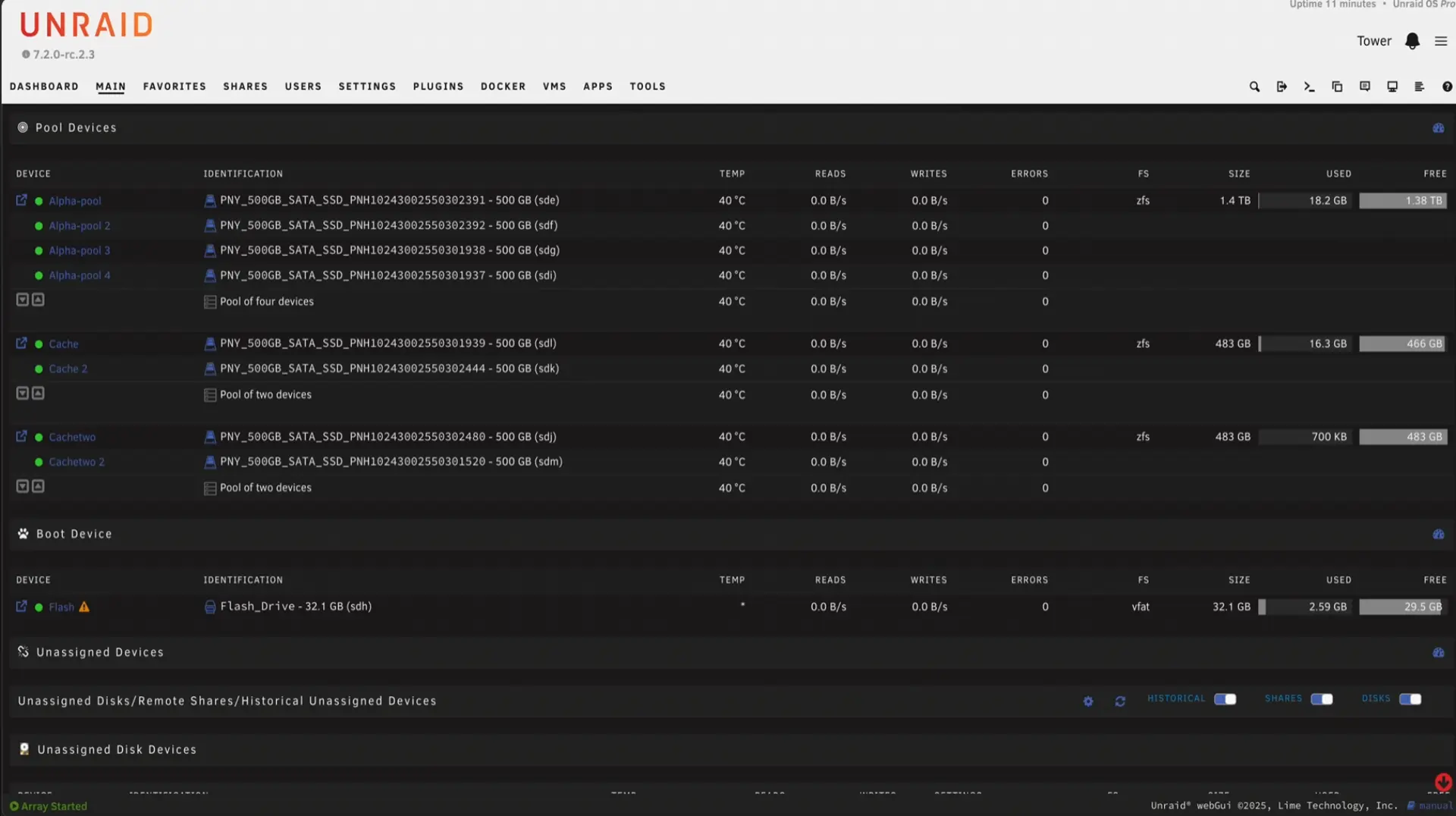
Unraid requires a paid license, starting at $59 USD for 6 drives, $89 USD for 12, and $129 USD for unlimited drives. Licenses are lifetime and tied to a USB boot device. There is no free tier beyond a limited-duration trial.
OpenMediaVault (OMV)
OpenMediaVault is a lightweight, Debian-based NAS OS that excels on modest hardware. It uses traditional Linux tools like mdadm for RAID and supports common protocols such as SMB, NFS, and FTP. It has a clean, modular web interface and offers plugins or Docker integration for extra functionality.
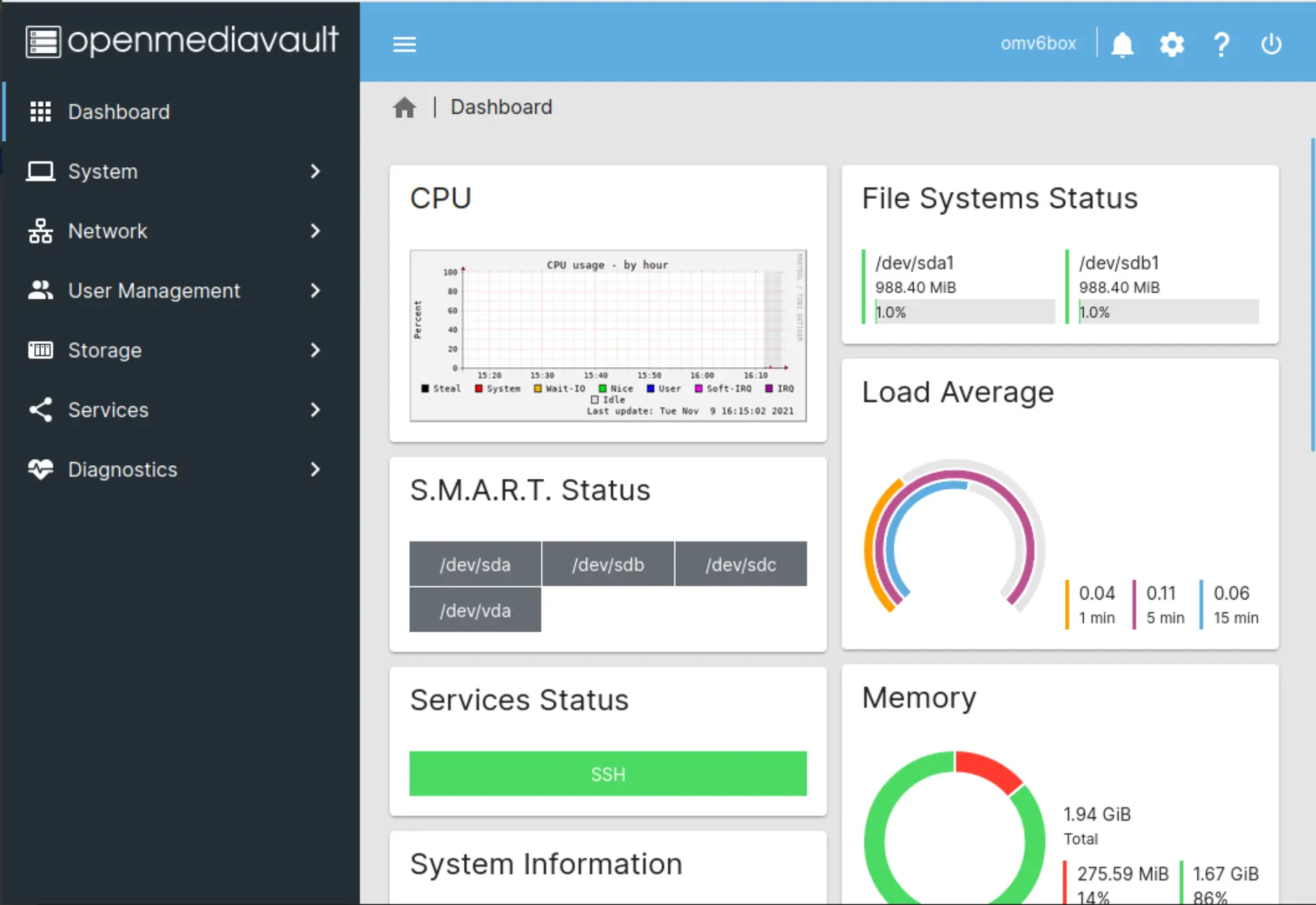
OMV is well-suited for repurposed desktops, single-board computers, or users who want to keep things simple while maintaining flexibility. It’s completely open source, and its plugin system includes tools for ZFS, SnapRAID, rsnapshot, and more.
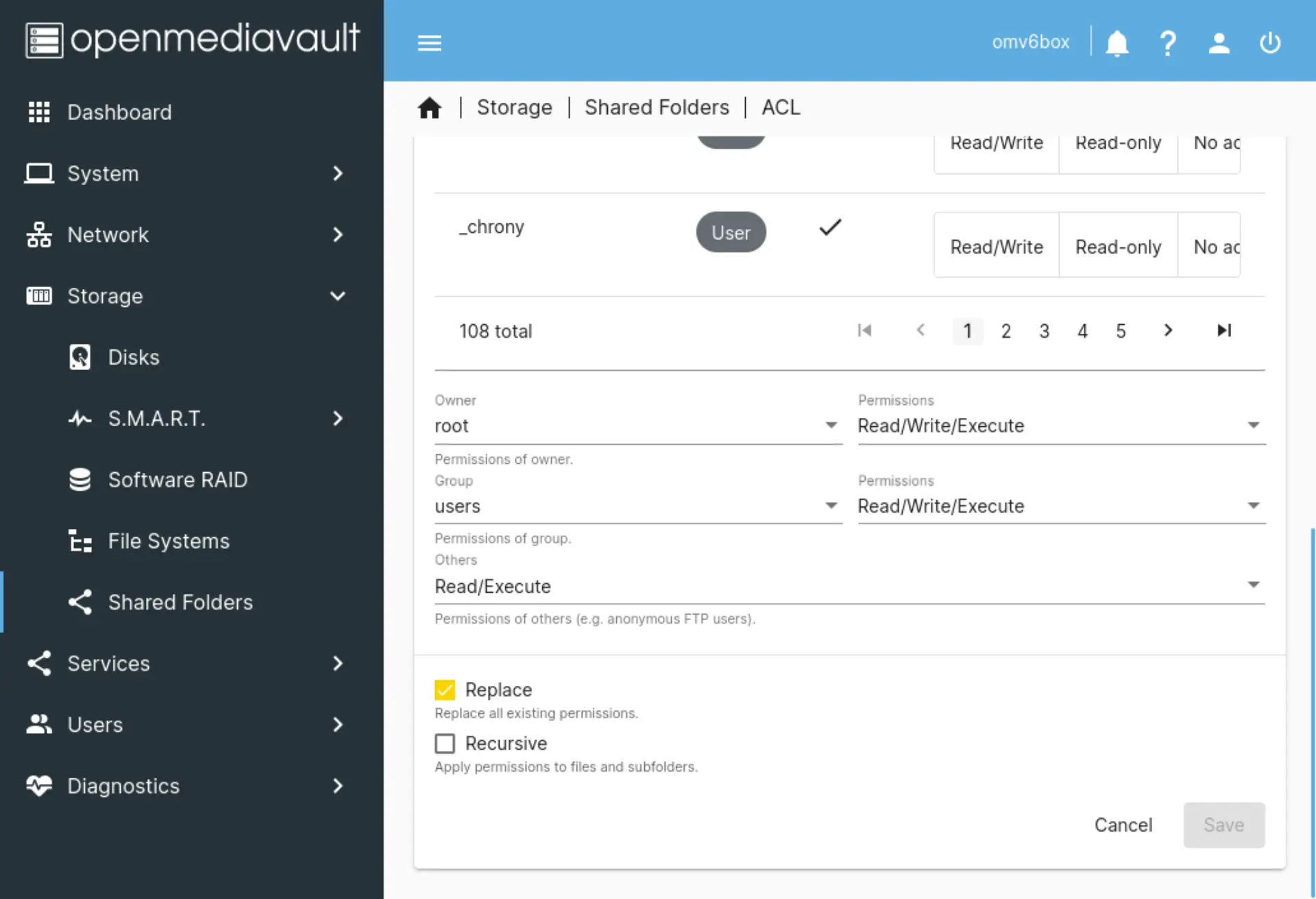
While not as polished as Synology or Unraid, OMV is highly reliable and enjoys strong community support. It’s ideal for users comfortable with Linux or looking for a minimal system that stays out of the way.
Synology DSM
DiskStation Manager (DSM) is the custom operating system used on Synology’s prebuilt NAS units. It’s known for its smooth, web-based interface and an excellent lineup of first-party applications—ranging from backup and photo management to file sync, virtualization, and surveillance.
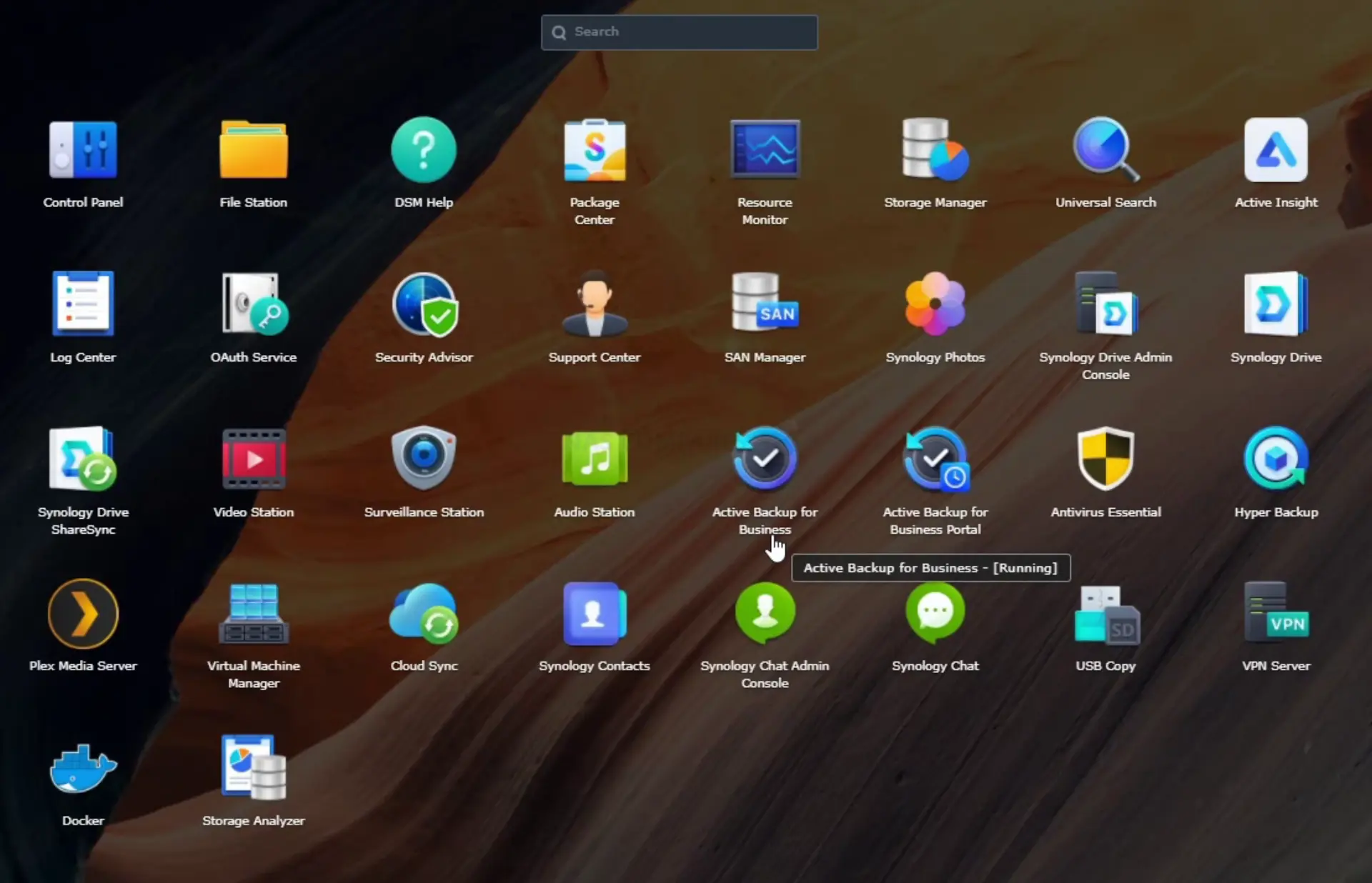
DSM is closed-source and available only on Synology hardware. It includes Synology Hybrid RAID (SHR) for simple and flexible drive redundancy, built over BTRFS, providing snapshots and data scrubbing.
Licensing is built into the cost of the device. Some features, like extended surveillance support or cloud backup, may require add-on licenses. DSM is the most user-friendly NAS OS available, with excellent documentation and seamless mobile integration.
QNAP QTS / QuTS hero
QTS is QNAP’s feature-rich NAS operating system, built around multitasking, virtualization, and high-end media workflows. It includes a powerful app store, built-in backup tools, and options for both traditional RAID and snapshot-aware file systems like Btrfs.
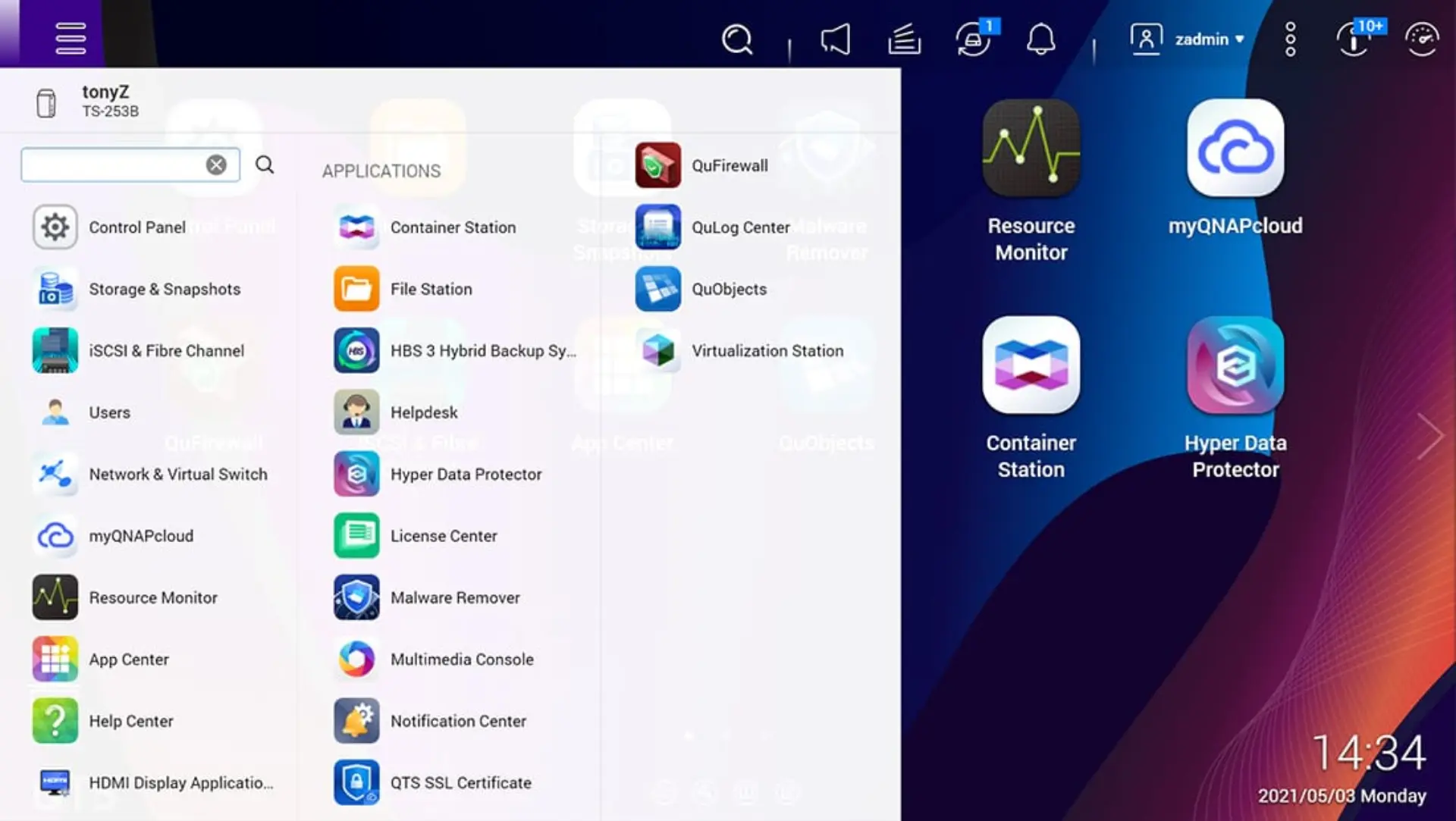
High-end QNAP systems support QuTS hero, a ZFS-based OS that prioritizes data integrity and resilience. Users can choose between QTS or QuTS depending on the device and use case. QNAP’s OSes are proprietary and licensed through the hardware. While many features are included, some advanced packages (especially in virtualization or backup) may require commercial licenses or subscriptions.
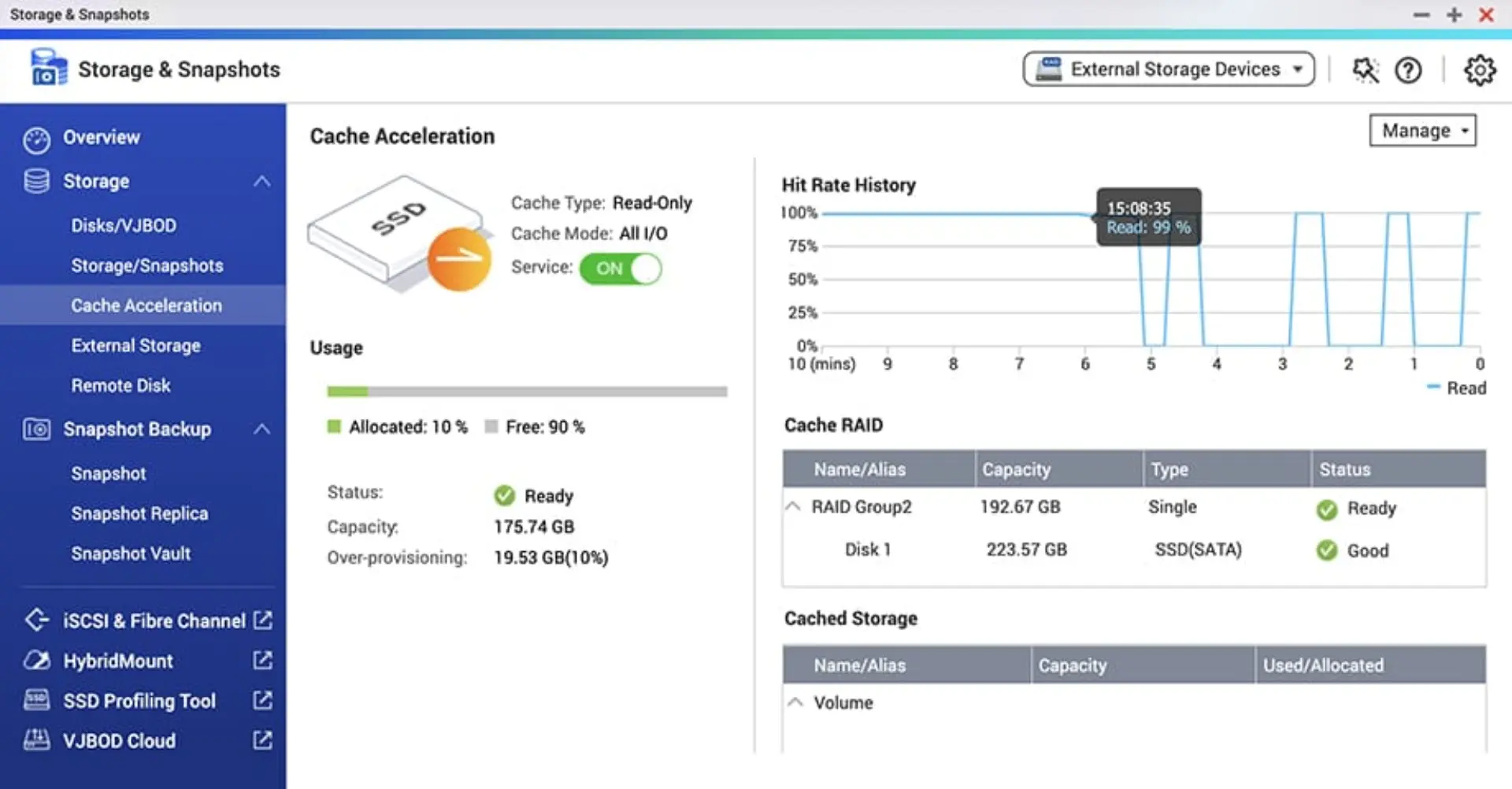
QNAP is often favored by power users for its hardware options: 10GbE, NVMe caching, GPU support, and the level of control QTS exposes. It’s more complex than DSM, but highly capable.
HexOS
HexOS is a newcomer aimed at simplifying the NAS experience without removing the power of modern file systems. Built directly on top of TrueNAS, HexOS retains the ZFS foundation but wraps it in a streamlined user experience focused on beginners. Its setup process is highly guided, and remote access and management are handled through a cloud-based interface, making it ideal for users who want the benefits of TrueNAS without the steeper learning curve.
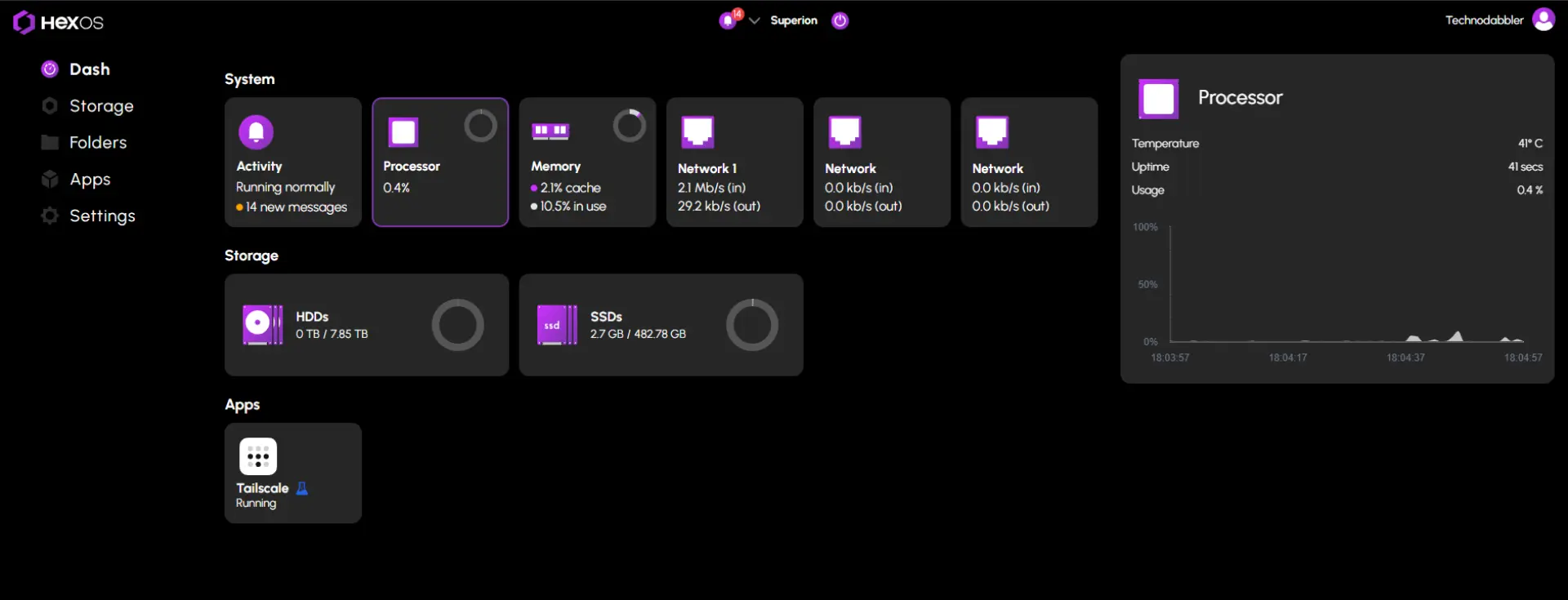
Unlike its parent platform, HexOS is closed-source and paid only, with a subscription-based model expected after its public beta. The project is still in active development, and although it inherits many of TrueNAS’s storage strengths, long-term viability will depend on continued adoption and support.
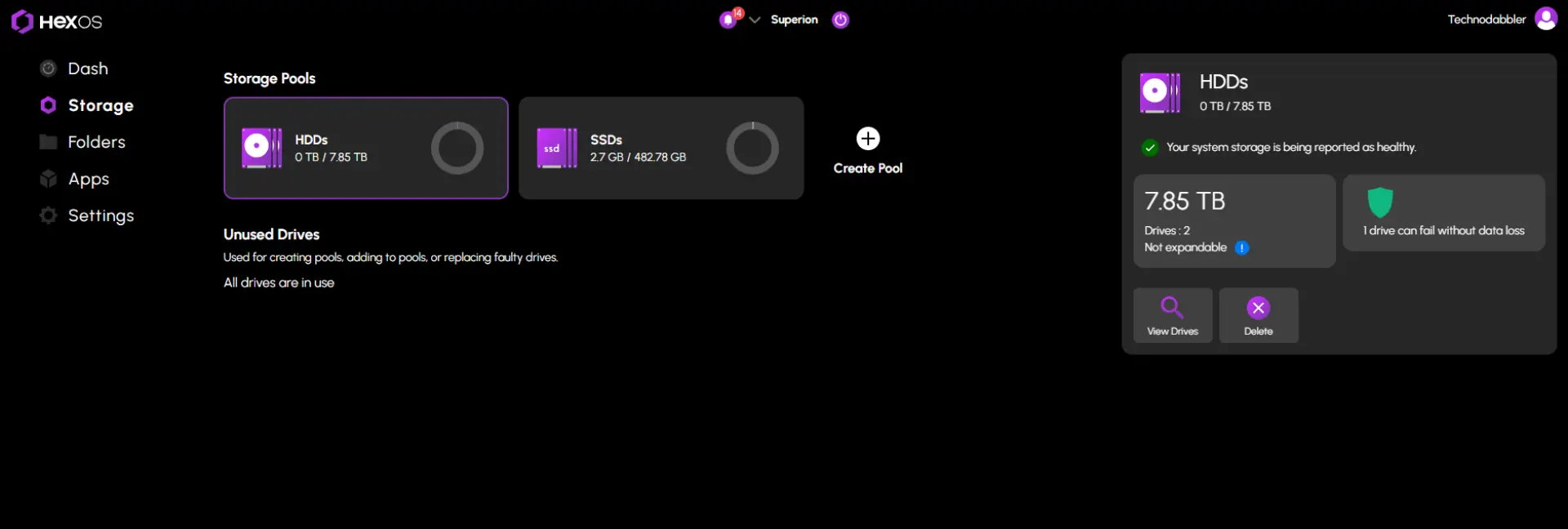
Once out of beta, HexOS will be the best for users who want a set-it-and-forget-it NAS while providing their own hardware, show a willingness to pay for convenience, and don’t want to dig into shell commands or ZFS tuning.
Windows (with Storage Spaces)
For users already invested in the Windows ecosystem, Storage Spaces offers a way to configure mirrored or parity volumes using internal or external drives. It supports data tiering, storage pooling, and some basic redundancy.
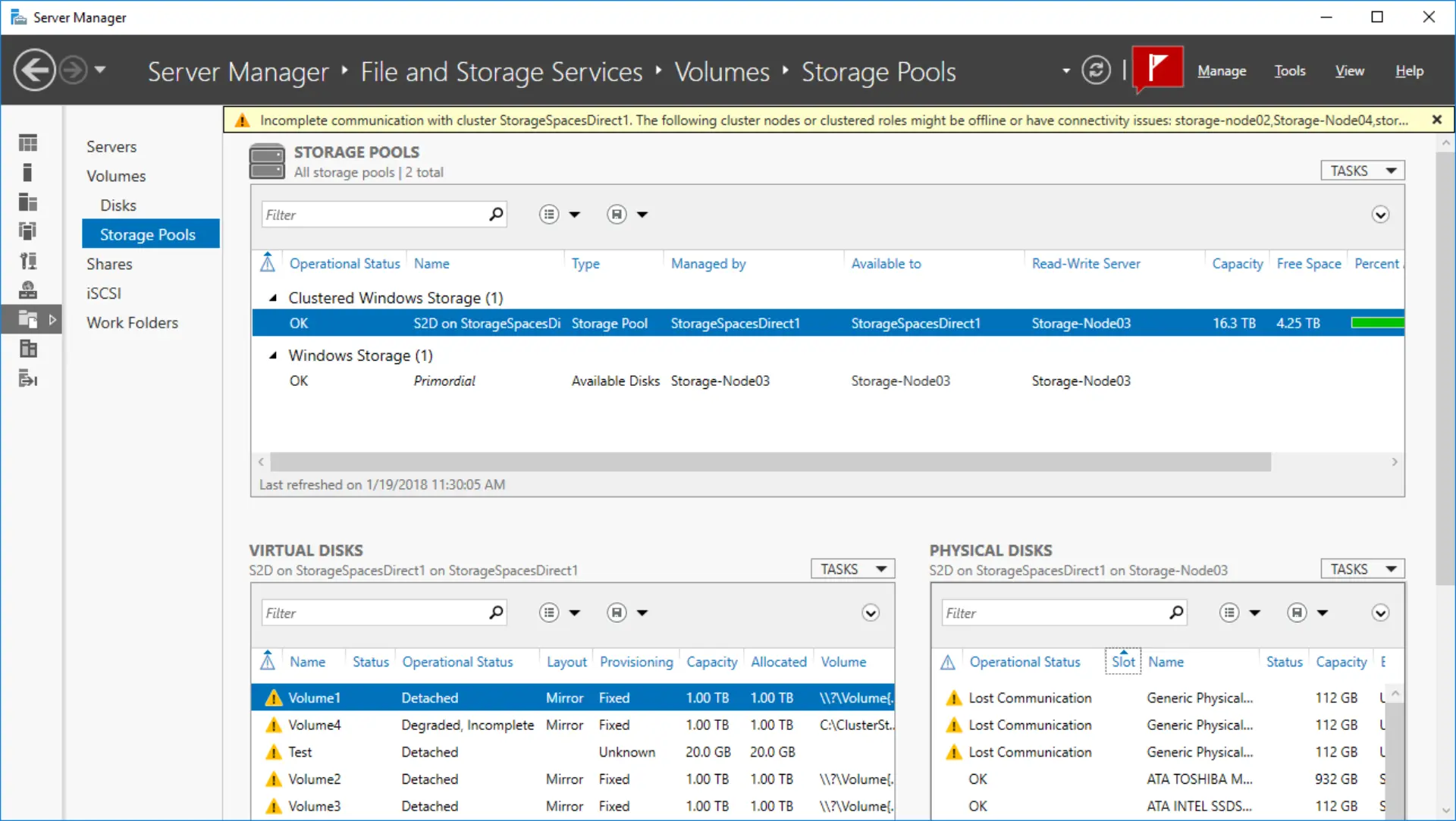
This setup isn’t common for dedicated NAS builds, but it works well in hybrid environments or for users who want to host file shares and applications on the same box. Windows Server adds additional features like deduplication, but licensing can get expensive. Storage Spaces is proprietary and built into Windows, with no additional licensing for consumer or Pro editions beyond Windows already existing costs.
Choosing the Right OS
Each NAS operating system has its strengths, and the best choice depends on your goals:
- Choose TrueNAS if you want enterprise-grade storage features, ZFS data integrity, and full system control.
- Choose Unraid if you want flexibility, mixed-drive parity, and a great platform for Docker and VMs.
- Choose OpenMediaVault if you want a clean, open-source NAS with traditional Linux RAID and a light footprint.
- Choose DSM or QTS if you want the specific hardware, ecosystem, or interface those platforms are built around.
- Choose HexOS if you want the safety of ZFS but with a guided, cloud-managed experience and are comfortable with a paid subscription model.
Your choice of NAS OS will likely be influenced by the hardware you use. Prebuilt systems come with their own tightly integrated operating systems. DIY builds give you more freedom, but also more responsibility. If you're unsure, test a few of the options in a virtual machine or on a spare system.
Part 4: Maintaining Your NAS
A NAS is designed to run unattended, but that doesn’t mean it should be forgotten. Regular maintenance keeps your data safe, your hardware healthy, and your system performing as expected. Whether you’re using a prebuilt unit or a DIY server, a bit of routine care goes a long way.
Monitor Your Drives
Drive failures are inevitable, but they rarely happen without warning. Most NAS operating systems include tools to monitor drive health and display metrics like temperature, load cycles, and error rates.
 Andy Klein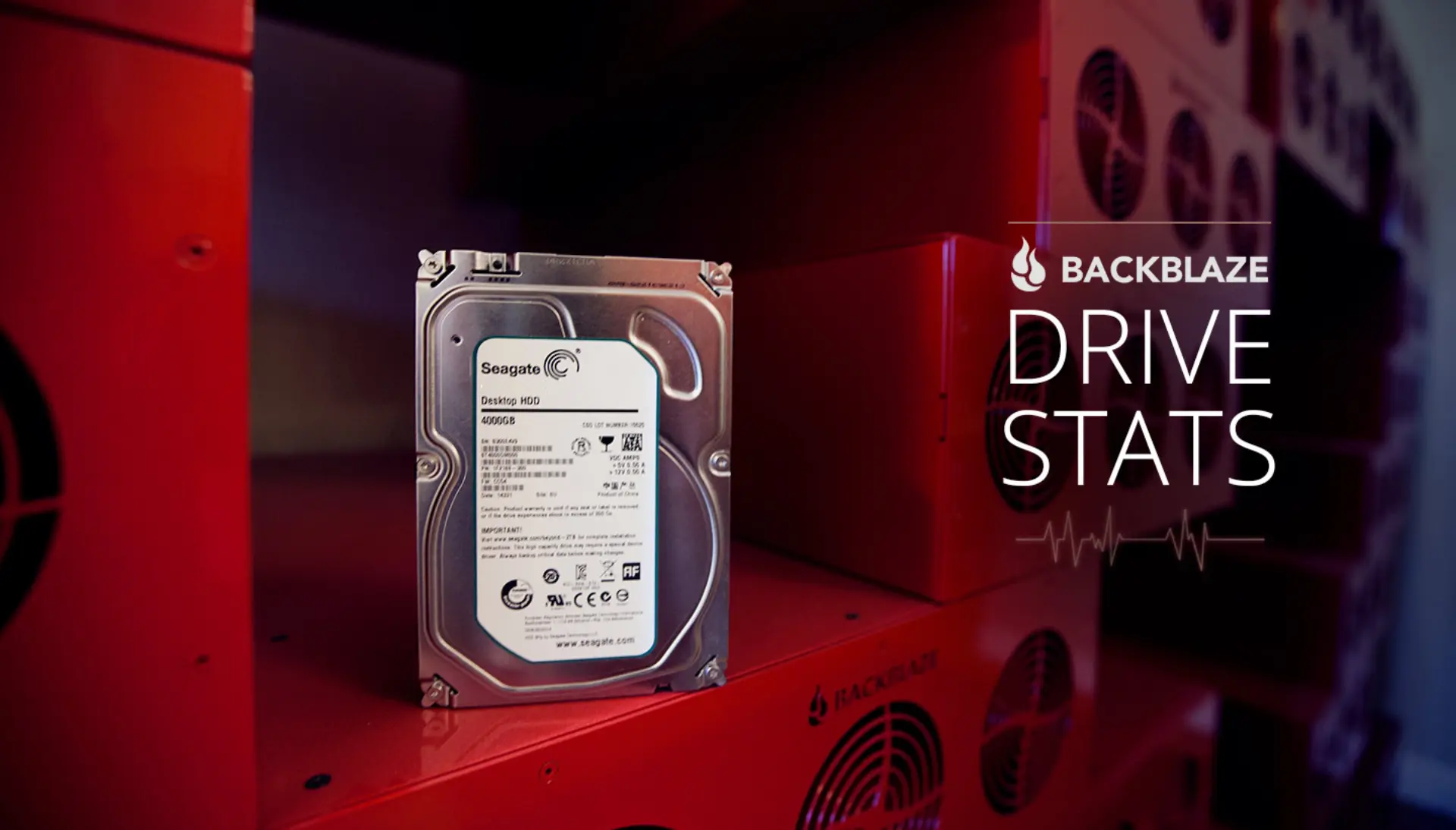
Amazing Backblaze article on how they use SMART to monitor the health of thousands of drives.
SMART data is one of the best indicators of drive condition. Metrics built-in and measured by the drive, they count suspicious events, like increasing reallocated sectors or uncorrectable errors. These don’t always mean failure is imminent, but they often signal a drive that’s no longer trustworthy. Many NAS platforms can scan SMART values on a schedule and issue warnings when thresholds are crossed.
It is also important to regularly monitor the health of your RAID array. Many file systems and RAID implementations support maintenance operations like scrubbing or parity checks. These should be scheduled monthly or quarterly, depending on your workload. They verify data integrity, confirm that redundancy is working, and catch silent corruption before it becomes unrecoverable.
Keep Your System Updated
Keeping your NAS updated is one of the best ways to protect it from emerging threats. Updates aren’t just about new features. They often patch critical security vulnerabilities that could otherwise expose your system to exploits. Like any connected device, a NAS can become a target for attackers looking to exploit out-of-date software. These intrusions can lead to data breaches, ransomware infections, or malware gaining control of the device. Even if your NAS is not exposed directly to the internet, vulnerabilities can still be exploited through local devices or poorly secured services.
 Vinodh Subramanian
NAS are particularly tempting targets for Ransomware, given their wealth of personal data. Backblaze offers good insights in the types of attack and how to protect your NAS.
Before applying any updates, it’s important to understand what’s changing. Check the changelogs provided by the NAS vendor or operating system. These often include security fixes, kernel or driver updates, or changes to services you rely on. Significant version upgrades may also deprecate features, alter permissions, or reset settings.
Always back up your configuration before a major upgrade. Most NAS platforms offer tools to export your settings, which can save hours of troubleshooting if something goes wrong. Some systems, like Unraid and TrueNAS, go a step further by supporting snapshot or rollback features. These allow you to revert the system to a working state if the update causes problems, preserving both data and system integrity. With proper planning, you can benefit from improvements without putting your data at risk.
Clean the Hardware
It’s easy to forget that your NAS is a physical device. Like any computer, it gathers dust, and more quickly if it lives near the floor or in homes with pets, carpet, or poor airflow. Over time, dust buildup can clog intake vents, jam fans, and trap heat. Although Backblaze found no correlation between temperature and harddisk failure, other components like the CPU and SSD do throttle under high temperature.
 NLM Team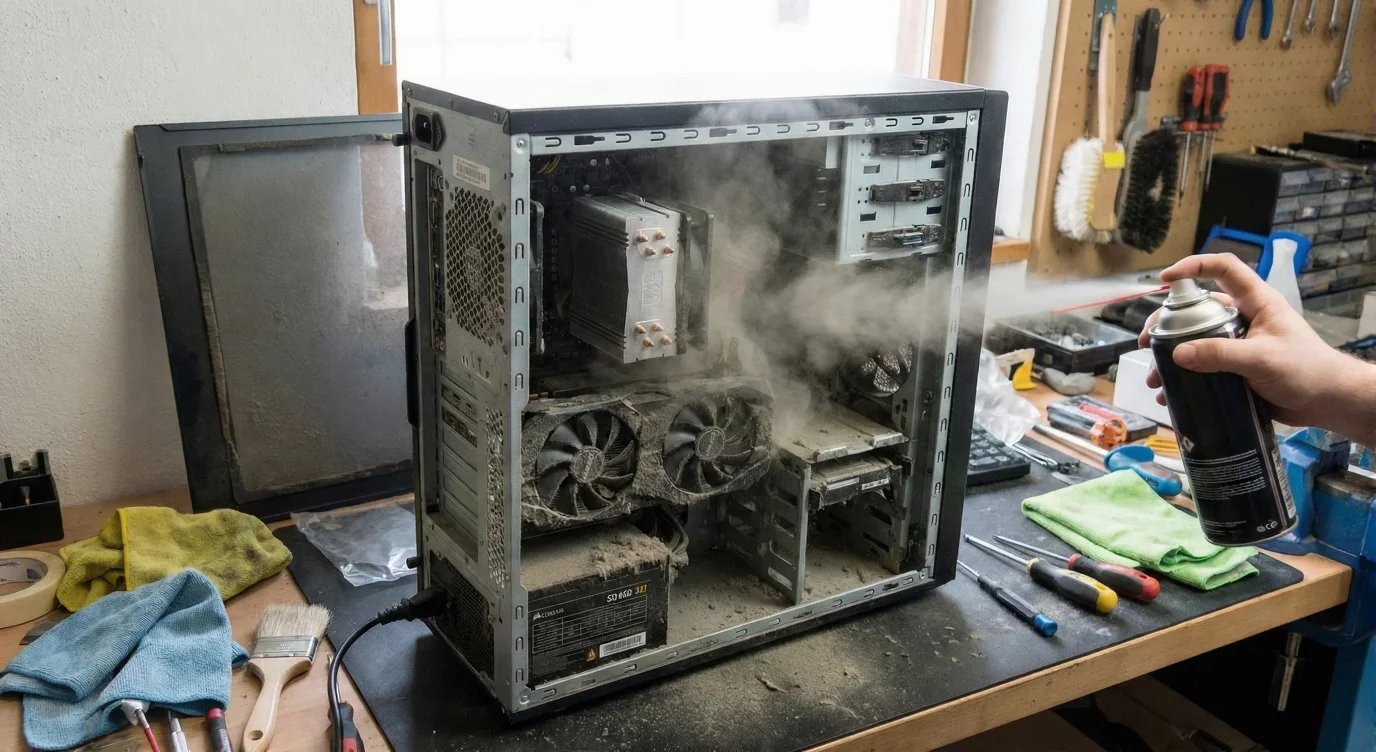
NeonLightsMedia has a good guide on cleaning your PC. The same advice would apply to pre-built NAS devices.
How often you clean your NAS depends on the environment. As a general rule, inspect it every few months, and clean as needed with compressed air or a vacuum on low power. Pay attention to drive bays, intake vents, and power supplies. Keeping your drives cooler will reduce the chances or premature failures.
Run Backups and Test Them
Although NAS can used as a backup solution for your computers, they need to be backup themselves. The sad reality is that even the best storage layout can't protect against accidental deletion, corruption, or disaster. A RAID array is not designed to be a backup, it only protects against hardware failure. A real backup means having a second (or more) independent copy of your data, preferably stored off-site or on removable media.
 Alex Denault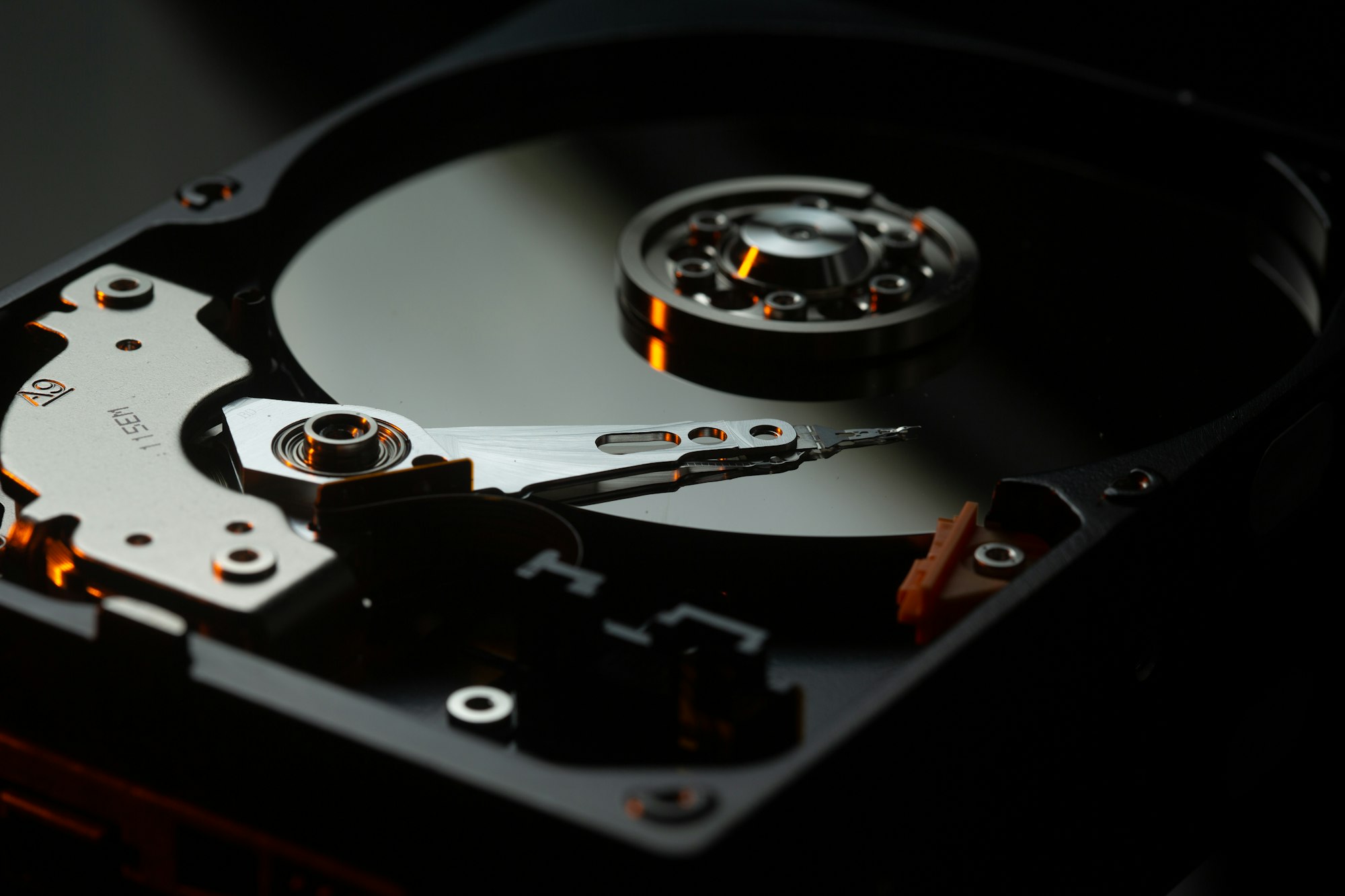
If you don't backup your data, you should consider it already lost. Read up on Technodabbler's guide to backups.
The golden rule of backup is 3-2-1: three copies of your data, on two types of media, with one stored offsite. Your NAS can be part of that plan, but it should never be the whole plan. For more detailed guidance, see our article: The Ultimate Backup Guide.
Watch Logs and Test Alerts
Most NAS platforms can generate logs and alerts for important system events: drive failures, full volumes, failed backups, and more. But these alerts often need to be configured. Many systems won’t send anything unless you’ve set up an SMTP server or push notification service.
Once alerts are enabled, test them. Make sure you receive emails or messages when drives fail or thresholds are triggered. It easy to unplug the drive of a new NAS (ideally then the system is off) and determine which alert is triggered when the device is brough back online. A silent NAS is a dangerous one if something breaks behind the scenes. Make it a habit to glance at system logs every few weeks. Even minor warnings can be early signs of bigger problems down the road.
Conclusion
A NAS is more than just a box of hard drives: it’s a central part of your digital infrastructure. Whether you're backing up laptops, streaming movies, syncing project files, or self-hosting your favorite tools, the NAS becomes a reliable foundation for everything else. The right setup depends on your needs, your budget, and your level of comfort with technology. But with the right planning, your NAS can grow with you, from a simple file server to a powerful, self-managed cloud.
Build it once, maintain it well, and your NAS will serve you "quietly" for years to come.


